The Best Screenshot, GIF, and Video Sizes for X in 2026
A practical reference for image, GIF, and video sizes and limits on X: aspect ratios, minimum resolution for crisp mobile rendering, and the right file format for each use case.
Getting the size wrong is a quiet way to lose engagement. X crops, compresses, or resizes your media depending on the format and aspect ratio, and a screenshot that looked sharp on your monitor can come out blurry, cropped wrong, or oddly letterboxed in someone's timeline. None of this is complicated once you know the numbers.
This is a reference we keep coming back to ourselves, image, GIF, and video limits on X as of 2026, plus which aspect ratio and file format to actually use for a given kind of post.
X's upload limits, in one place
These are the current limits worth knowing before you export anything. Images can be up to 5MB. GIFs can be up to 15MB on web. Videos can be up to 512MB and up to 2 minutes 20 seconds long for standard accounts. Go over any of these and X will either reject the upload or compress it harder than you want.
X also converts every GIF you upload into a video internally. This matters more than it sounds like it should, because it means the smoothness and color quality you see after upload is partly determined by X's own conversion, not just your original file. A cleanly encoded GIF survives that conversion better than a noisy, high-color one.
- Images: max 5MB.
- GIFs: max 15MB (web), converted to video internally by X after upload.
- Video: up to 512MB and 2 minutes 20 seconds for standard accounts.
Aspect ratio: 16:9 and 1:1 are the safe choices
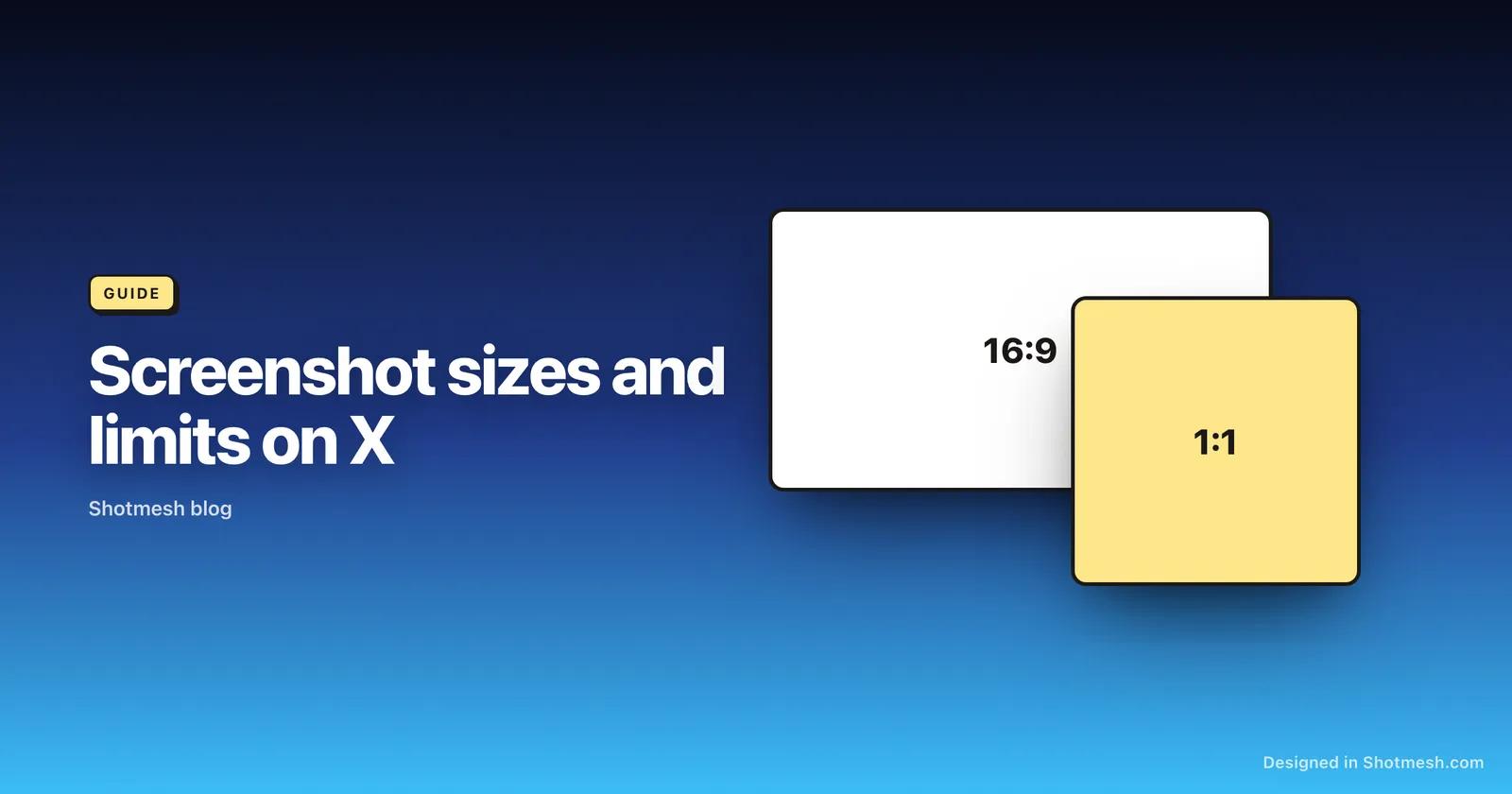
X's recommended aspect ratios are 16:9 and 1:1. These are the safest defaults because they're what the timeline is built around, they render predictably in both the feed and when someone taps to expand the media, and they don't get awkwardly cropped in preview thumbnails the way unusual ratios sometimes do.
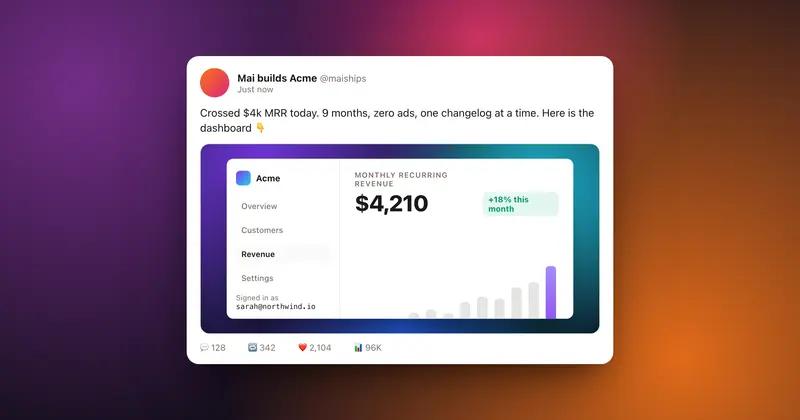
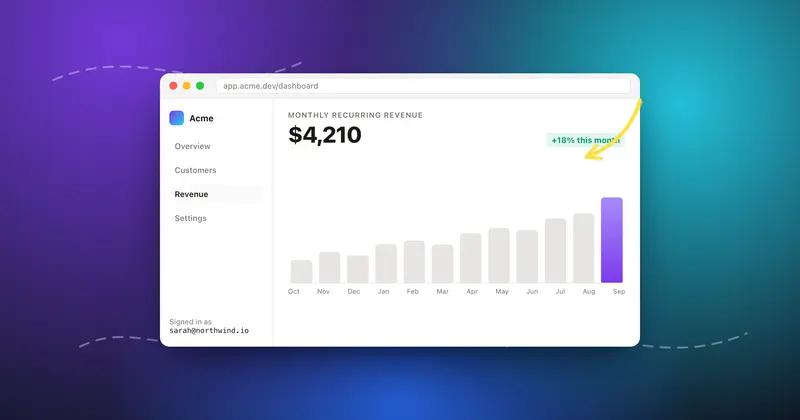
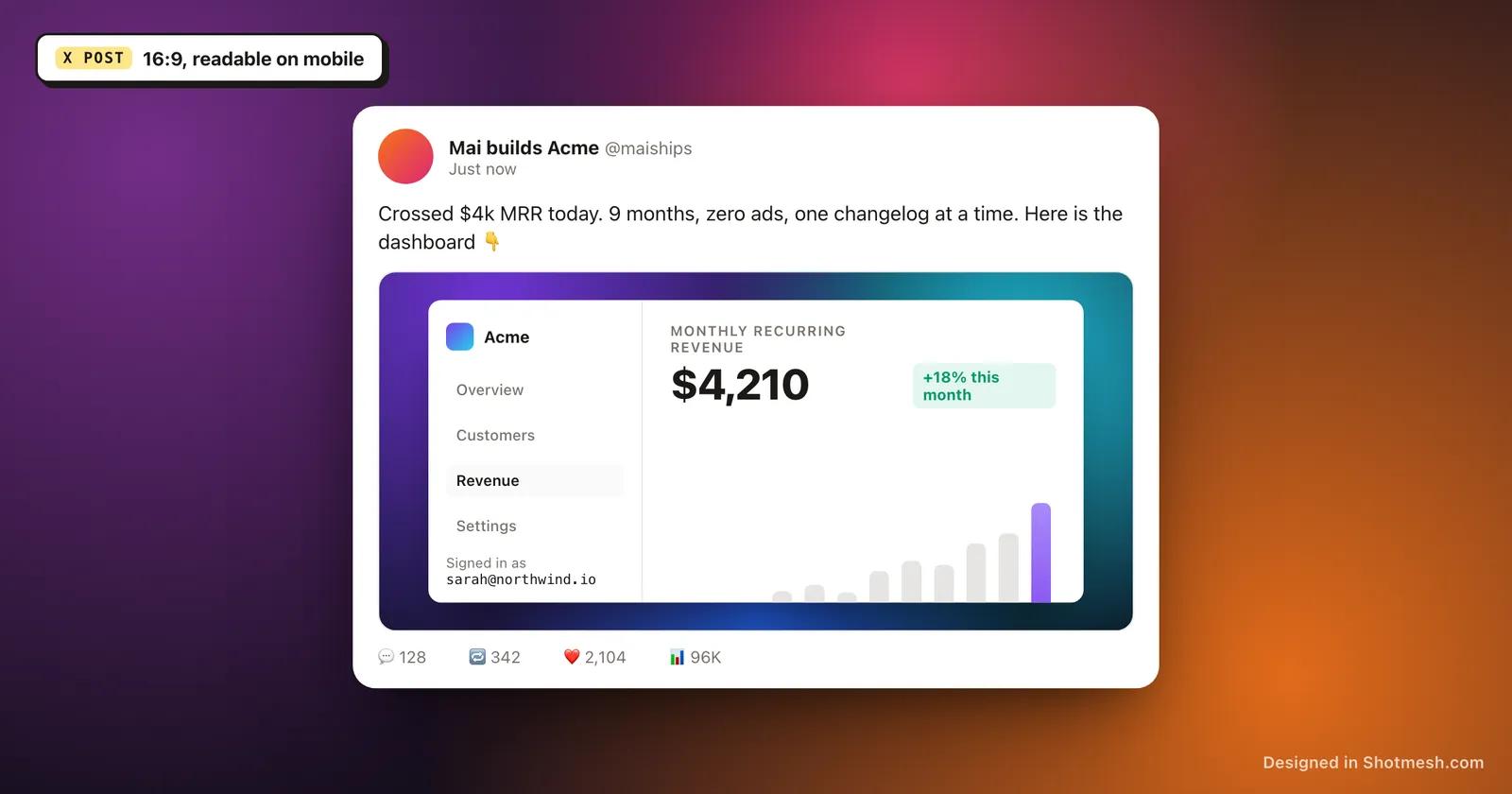
16:9 works well for wide UI, dashboards, full app screenshots, and anything landscape by nature. 1:1 works well for anything you want to feel more like a focused product shot, a single component, a mobile screen mockup, or a tight crop on one metric or chart.
4:5 (portrait, taller than it is wide) can work for mobile app screenshots and does take up more vertical space in a feed, which some people use deliberately for that reason, but it's a riskier choice. It's not one of X's own recommended ratios, so preview cropping behaves less predictably, and it can look cramped when the same tweet is opened on a wider desktop timeline. If you want reliability across devices, default to 16:9 or 1:1 and treat 4:5 as a deliberate exception, not your default.
Minimum width for crisp mobile rendering
Most impressions on X happen on a phone, and phones today render at high pixel density, so an image that's technically clear at 800px wide can look soft or slightly blurry once it's displayed at 2x or 3x density on a modern phone screen. Export wider than you think you need.
Aim for at least 1600px wide for any screenshot you're posting as a standalone image or as part of a GIF or video. Going wider than that has diminishing returns for file size versus visible sharpness, but going narrower than 1600px is where text and fine UI detail starts to visibly soften on mobile.
- Aim for at least 1600px wide for standalone image posts.
- Keep the same minimum for GIF and video exports, low source resolution shows up worse after X's own compression.
- If your source screenshot is smaller than 1600px wide, avoid stretching it up, it will look worse than exporting at its native size.
Open Graph images: a different size for a different job
If you're linking out to your own site, blog post, or landing page from a tweet, the image that shows up in that link preview isn't controlled by your tweet media settings, it's the Open Graph (or Twitter card) image defined in your page's meta tags. That image renders best at 1200x630, a wider ratio than either 16:9 or 1:1.
This is a separate asset from your in-tweet screenshot, and it's worth generating on purpose rather than letting your site fall back to a generic default or your logo. A well-made 1200x630 OG image is one of the highest leverage small assets you can make, since it shows up every time your link is shared anywhere, not just on X.

File weight: picking the right format for the job
Format choice affects both quality and file size more than most people account for. PNG is the right choice for UI screenshots, dashboards, and anything with sharp edges and flat colors, since it compresses that kind of content losslessly and keeps text crisp. JPEG is better for photos or anything with lots of gradients and natural color, where PNG's lossless approach makes the file unnecessarily large.
For motion, GIF is the format to reach for when you specifically need something that behaves like an image (autoplays without a play button, works in places that don't support video embeds), and Shotmesh keeps GIF exports automatically under the 15MB limit so you don't have to guess at settings. For anything longer than a few seconds or with more color complexity, MP4 is the better choice, since it's smaller and sharper at the same visual quality and has no 15MB ceiling to work around.
- PNG: UI screenshots, dashboards, anything with text or flat colors.
- JPEG: photos, gradients, natural images where file size matters more than pixel-perfect edges.
- GIF: short loops, autoplay in places that need an image format, kept under 15MB.
- MP4: longer clips, complex color, best quality per megabyte, no 15MB limit.
Export your screenshot at the right size and format for X in one pass, free in your browser.