
Put your screenshot in a MacBook mockup
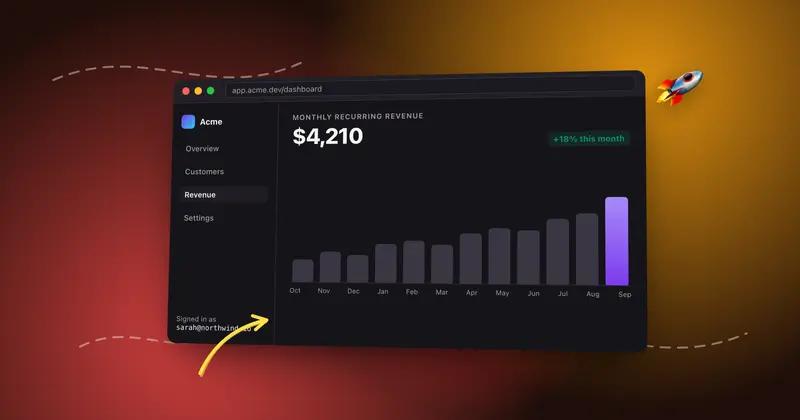
Drop a screenshot in and it lands inside a MacBook frame, ready for a gradient background, a tilt, and an export. Nothing leaves your browser.
Free. No signup. Paste with ⌘V and start. Your screenshot stays in your browser.
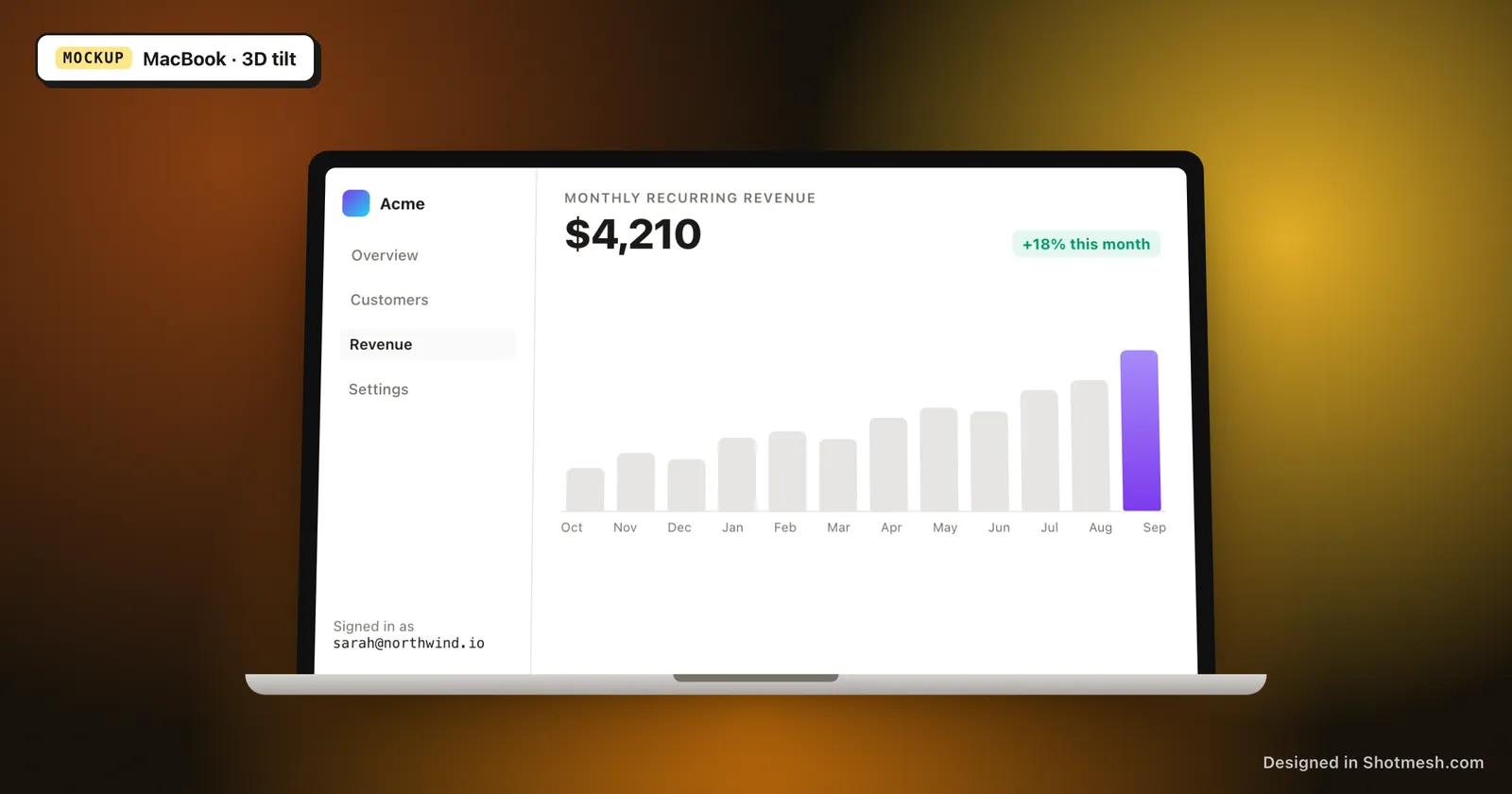
A MacBook mockup makes a plain screenshot look like it's sitting on a real laptop screen, which reads better in a tweet, a landing page, or a changelog than a flat rectangle. Shotmesh drops your image into a MacBook frame the moment you paste or drop it, no upload step and no account required. Everything runs in the browser tab you're already in.
Once the screenshot is framed, you can put it on any of the 44 gradient presets across Aurora mesh, Pastel, Linear, and Classic groups, or use an image or animated background instead. Tilt the mockup in 3D for a more dynamic angle, add a shadow, and adjust the padding around the frame so the composition matches whatever you're posting next to it.
Export as a static PNG for a landing page or README, or as MP4 if you want the mockup to move in a launch tweet. Editing, backgrounds, frames, and PNG export are free. Free exports carry a small Shotmesh watermark; Pro removes it and unlocks the other export formats.
How it works
How to put your screenshot in a MacBook mockup
- 01
Add your screenshot
Paste an image from your clipboard or drop a file onto the canvas. It loads straight into the editor, nothing is uploaded to a server.
- 02
Pick MacBook as the frame
Switch the device mockup to MacBook. The screenshot fits inside the laptop screen automatically.
- 03
Style the background and angle
Choose a gradient preset, an image, or an animated background, then tilt the mockup in 3D if you want it off-axis instead of flat.
- 04
Export
Pick PNG for a static image or MP4 for a moving one, then save. Everything renders locally in your browser.
Why Shotmesh
What you get that a plain crop does not
No upload, no waiting
The screenshot never leaves your machine. There's no file upload, no processing queue, and no account to create before you can export.
Built for how indie hackers post
Canvas size presets for X posts and OG images mean the MacBook mockup comes out the right shape for a tweet or a link preview without manual cropping.
Free to start
All the editing tools, backgrounds, and frames are free, including PNG export. Pro is only needed if you want the watermark off or the extra export formats.
FAQ
Questions people ask
Is the MacBook mockup generator free?
Yes. Framing your screenshot in a MacBook, choosing a background, and exporting as PNG are all free. The free export has a small watermark, and upgrading to Pro removes it.
Do I need to upload my screenshot anywhere?
No. You paste or drop the image directly into the browser tab, and everything, including the export, happens on your machine.
Can I animate the MacBook mockup?
Yes. Use an animated background or animated stickers, then export as MP4 or GIF instead of PNG.
What image sizes can I export?
Pick from canvas presets like an X post or a 1200x630 OG image, or leave it on auto to match your screenshot's proportions.
Can I tilt the MacBook mockup instead of showing it flat?
Yes, the 3D tilt control angles the whole mockup, screenshot and frame together, for a less flat look.
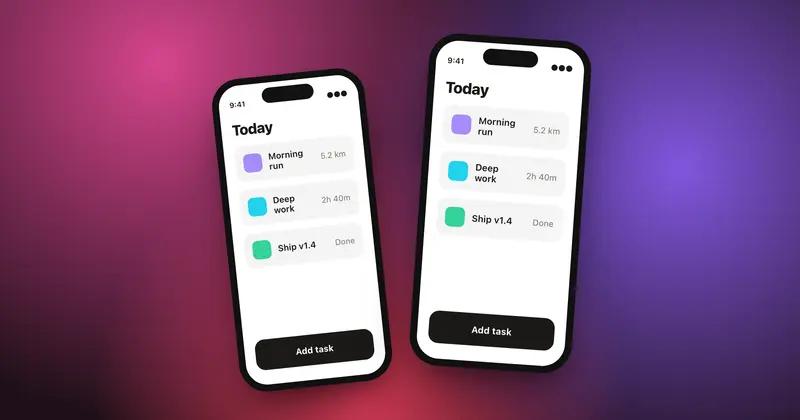
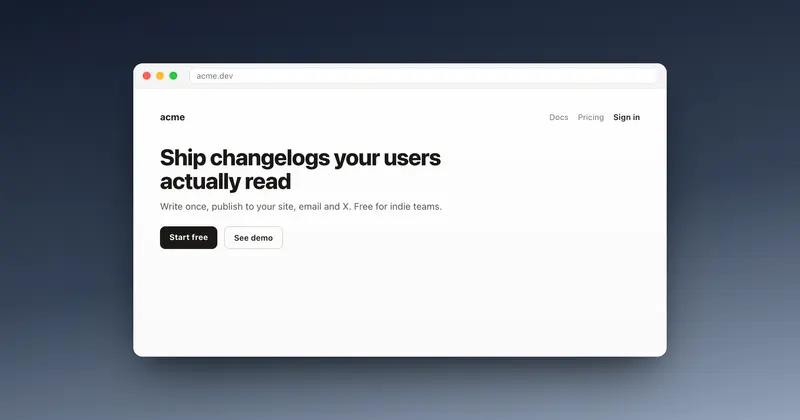
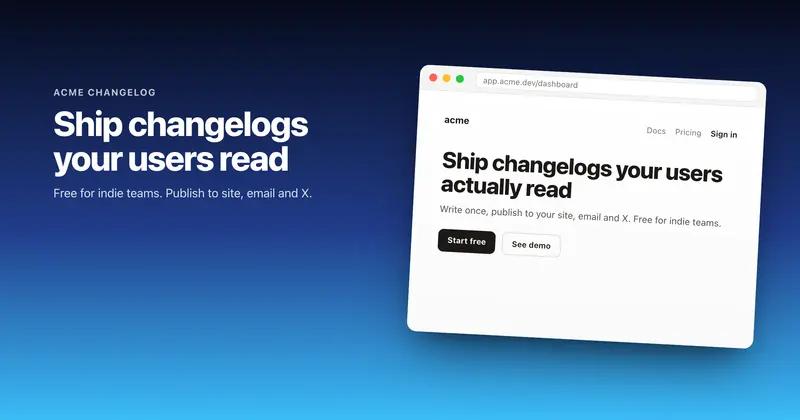
Try it on a real screenshot
Paste from your clipboard and you are editing in under a second.