
Add a background to any screenshot
44 gradient presets across four styles, plus image and animated backgrounds, each editable layer by layer.
Free. No signup. Paste with ⌘V and start. Your screenshot stays in your browser.
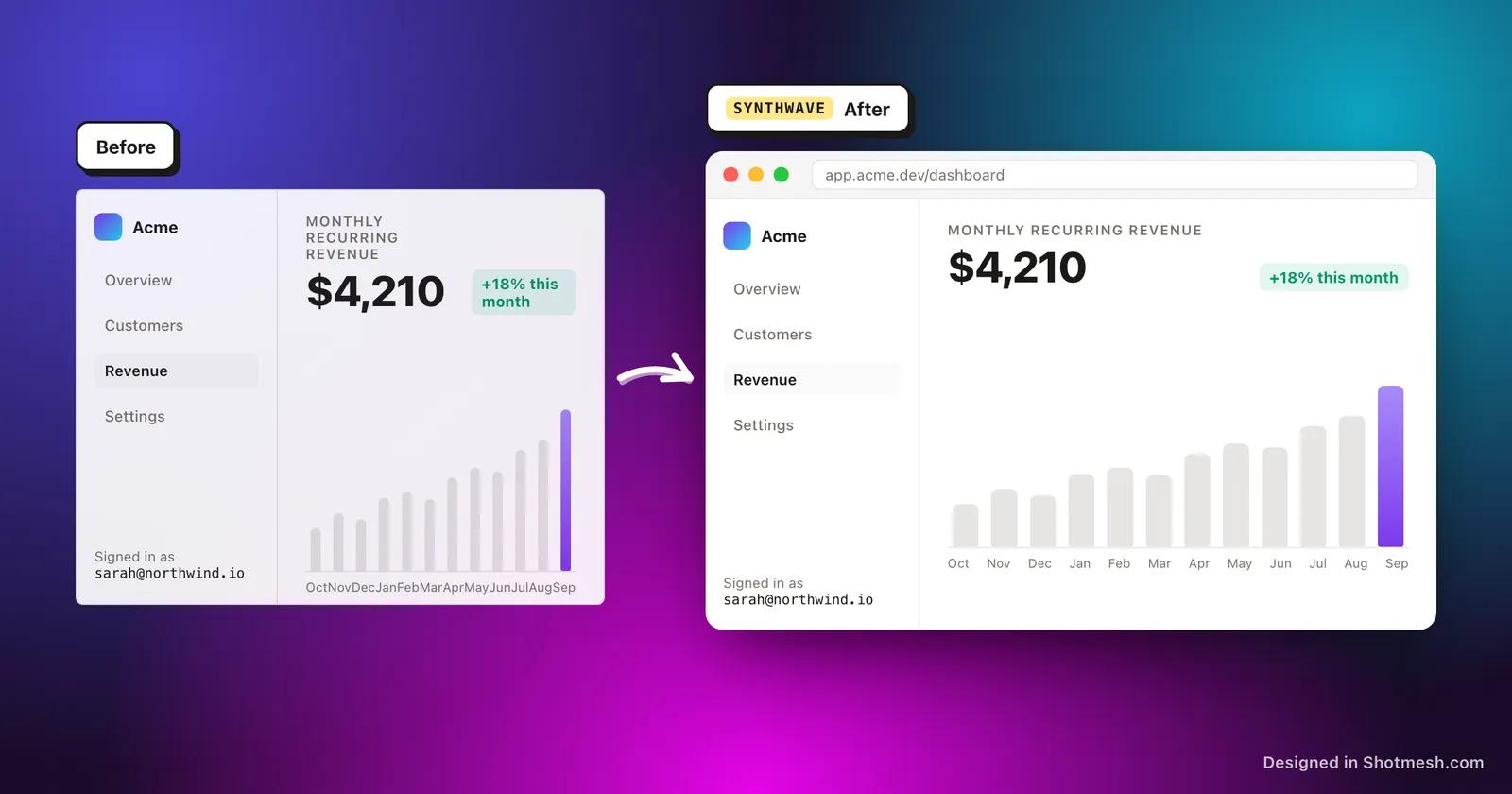
A raw screenshot on a plain white or black background reads as unfinished next to the polished shots people scroll past on X. A background, some padding and a soft shadow are usually the difference between a screenshot that looks like a bug report and one that looks like a product shot.
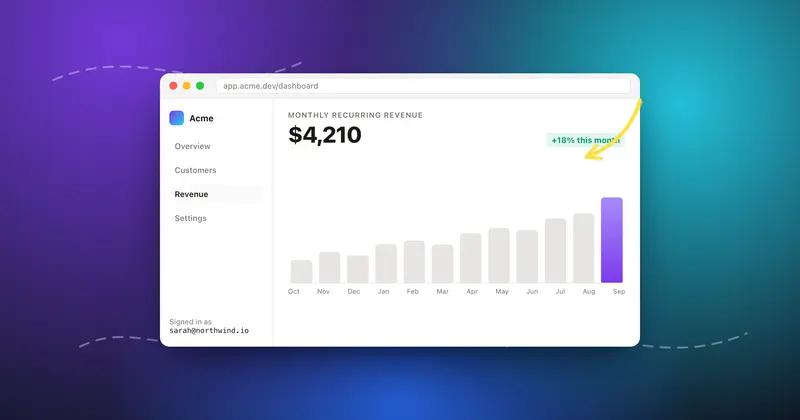
Shotmesh ships 44 gradient presets split into four groups: Aurora mesh, Pastel, Linear and Classic. Each one is editable layer by layer, so you can shift the base color, move the glow blobs or change the angle instead of being stuck with the preset exactly as it comes. You can also drop in your own image as the background, or use an animated GIF or video background if the export is going to move.
Padding, shadow and corner radius are separate controls, so a gradient background does not lock you into one look. Tighten the padding for a dense UI screenshot, loosen it and add more shadow for something that should feel like it is floating.
How it works
How to add a background to any screenshot
- 01
Paste your screenshot
Drop the image into the editor. It stays local, nothing is uploaded to a server.
- 02
Pick a background group
Choose from Aurora mesh, Pastel, Linear or Classic gradients, or switch to an image or animated background instead.
- 03
Adjust the layers
Change the base color, move or resize glow blobs, and adjust the angle to fit the mood of your post.
- 04
Set padding, shadow, corner radius, export
Dial in spacing and shadow depth, round the corners if you want, then export as PNG, JPEG, GIF or MP4.
Why Shotmesh
What you get that a plain crop does not
44 presets, four distinct groups
Aurora mesh gives you soft glowing gradients, Pastel is light and calm, Linear is a clean directional fade, Classic is simple two-color gradients. Having groups instead of one long list makes it faster to find a look that matches your post.
Presets are a starting point, not a limit
Every gradient breaks down into base color, glow blobs and angle, all independently adjustable. You can nudge a preset toward your brand colors instead of using it as-is or skipping it entirely.
Backgrounds can move too
Image backgrounds are static, but you can also use an animated GIF or video background, which matters if you are exporting a GIF or MP4 and want the background to have life beyond the screenshot itself.
FAQ
Questions people ask
How many background presets are there?
There are 44 curated gradient presets across four groups: Aurora mesh, Pastel, Linear and Classic.
Can I use my own image as the background?
Yes, you can upload an image to use as the background instead of one of the gradient presets, or use an animated GIF or video background.
What parts of a gradient can I edit?
Base color, glow blobs and angle are all separate, editable layers, so you can adjust a preset instead of using it exactly as-is.
Does adding a background require an account?
No. Backgrounds, padding, shadow and corner radius are all part of the free editor, no signup needed.
Will the background show up in every export format?
Yes, the background renders in PNG, JPEG, GIF and MP4 exports the same way it appears in the editor.
Related tools
Same editor, different job

Try it on a real screenshot
Paste from your clipboard and you are editing in under a second.