
Annotate a screenshot with hand-drawn arrows
Draw arrows, underlines, highlight markers, and shapes on a screenshot with a hand-drawn look, then animate them so they draw themselves in a GIF or MP4.
Free. No signup. Paste with ⌘V and start. Your screenshot stays in your browser.
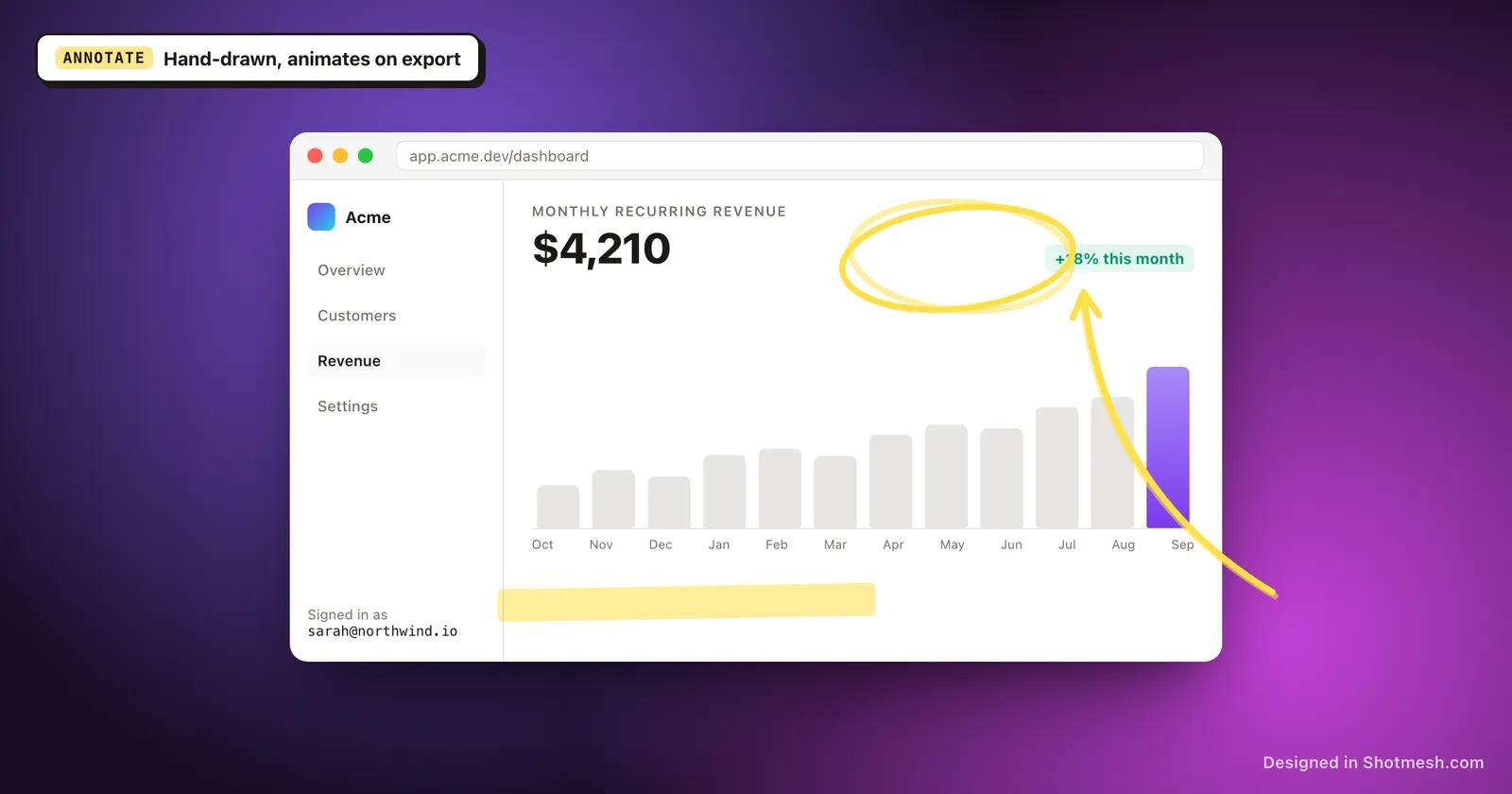
Pointing at part of a screenshot usually means an arrow or a highlight, and a perfectly straight, machine-drawn line looks out of place next to a casual product update. Shotmesh's annotations are powered by rough.js, so arrows, underlines, highlight markers, and shapes come out with a hand-drawn look instead of a vector-perfect one.
Roughness is adjustable, so you can push the sketchy look further or pull it back toward something cleaner, depending on how polished you want the final image to be. In an animated export, annotations can draw themselves on instead of appearing all at once, which reads closer to someone marking up the screenshot live.
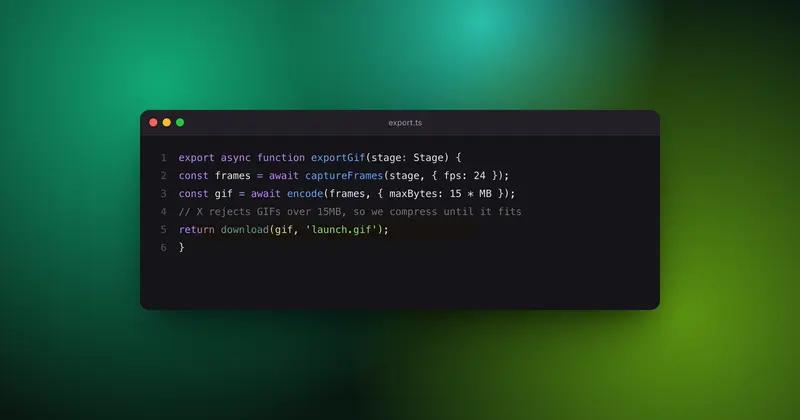
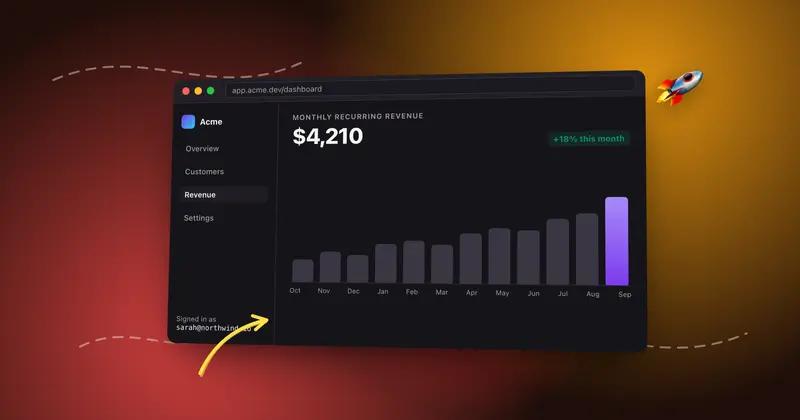
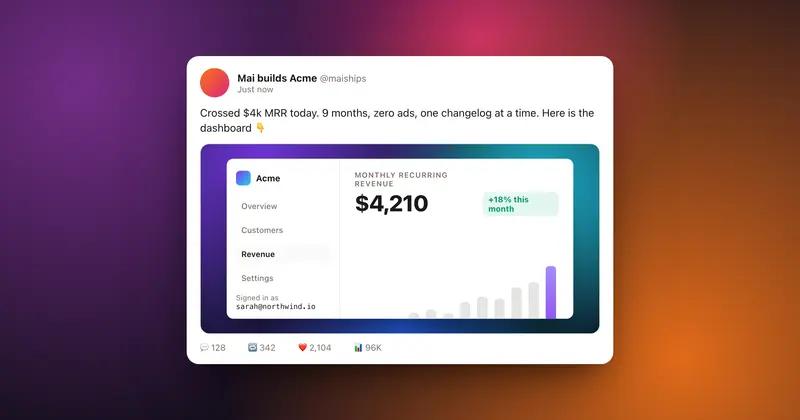
Annotate a screenshot inside a MacBook, iPhone, or browser frame, on any of the 44 gradient backgrounds, and export as PNG, GIF, or MP4. Annotating and PNG export are free; Pro removes the watermark and unlocks GIF and MP4 export.
How it works
How to annotate a screenshot with hand-drawn arrows
- 01
Add your screenshot
Paste or drop the image you want to mark up. It's ready to annotate right away.
- 02
Pick an annotation type
Choose an arrow, underline, highlight marker, or shape and draw it directly on the screenshot.
- 03
Adjust the roughness
Set how hand-drawn the annotation looks, from close to a straight line to noticeably sketchy.
- 04
Export, animated if you want
Save as PNG for a static export, or GIF or MP4 to have the annotations draw themselves in.
Why Shotmesh
What you get that a plain crop does not
Looks hand-drawn, not vector-perfect
Rough.js gives arrows and highlights a sketchy edge instead of the dead-straight lines most annotation tools produce.
Annotations can animate
In a GIF or MP4 export, the arrows and highlights draw themselves onto the screenshot instead of just appearing, which holds attention longer in a feed.
No upload for a screenshot that might have sensitive context
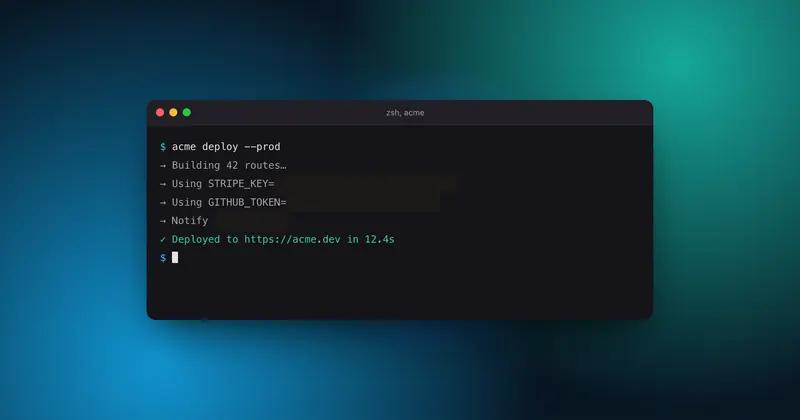
Since annotating often means pointing at code or data, it matters that the image stays in your browser and never gets uploaded to a server.
FAQ
Questions people ask
Can I change how hand-drawn the annotations look?
Yes, roughness is an adjustable setting, so arrows and shapes can look close to straight lines or clearly sketchy.
Can the arrows and highlights animate?
Yes, export as GIF or MP4 and the annotations draw themselves onto the screenshot instead of appearing instantly.
What annotation shapes are available?
Arrows, underlines, highlight markers, and general shapes, all drawn with the rough.js hand-drawn style.
Is the annotation tool free?
Yes, adding annotations and exporting as PNG are free. Animated GIF and MP4 exports and watermark removal are on Pro.
Does my screenshot get uploaded when I annotate it?
No, annotating happens in your browser, and the image never leaves your machine.
Try it on a real screenshot
Paste from your clipboard and you are editing in under a second.