
Make a screenshot that looks right on X
Right canvas size, readable on mobile, and a GIF or MP4 that autoplays in the feed instead of sitting flat.
Free. No signup. Paste with ⌘V and start. Your screenshot stays in your browser.
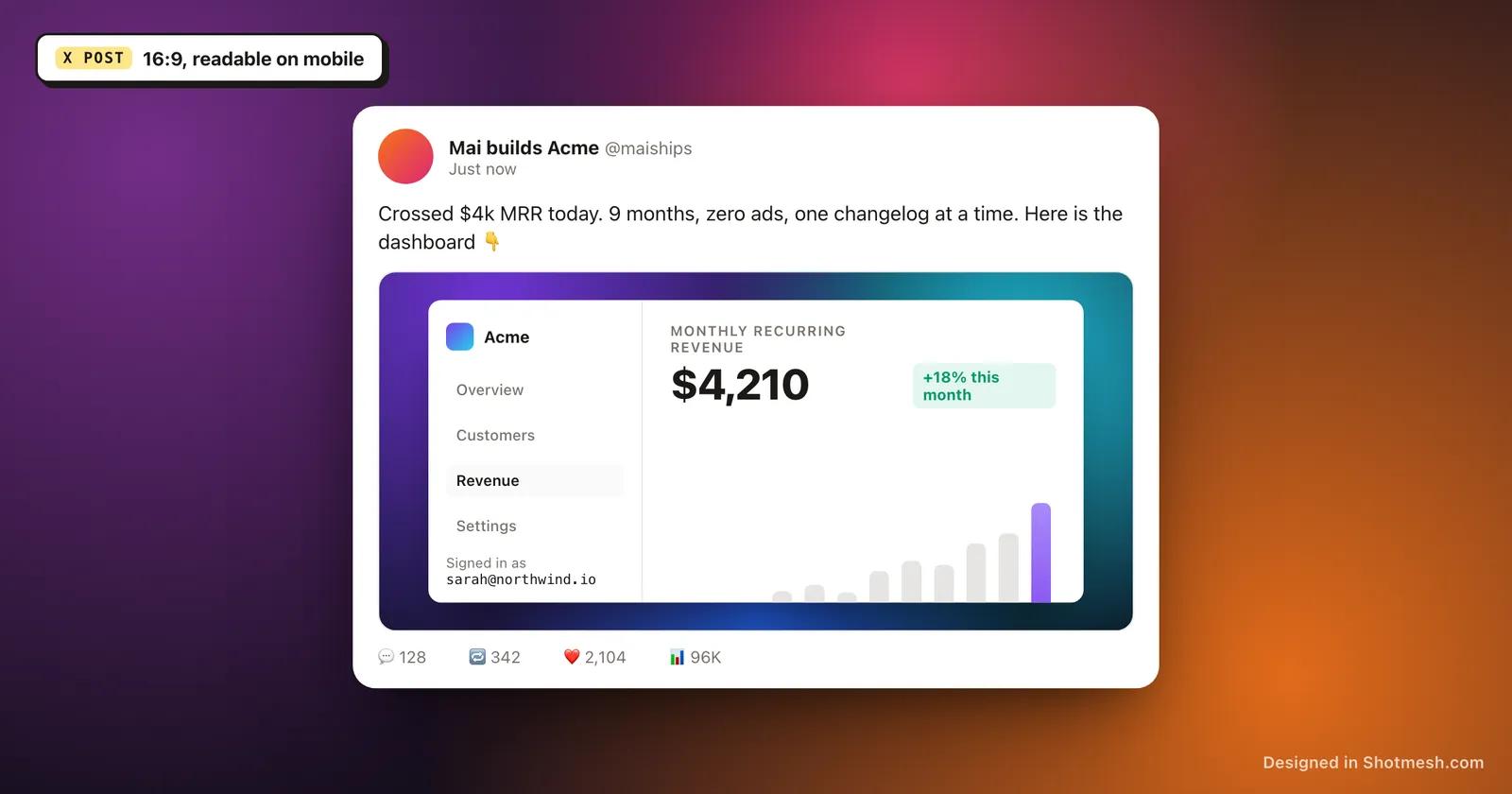
This is not a tool for faking a tweet. It is for making the screenshot you attach to a real post, a product shot, a code snippet, a before-and-after, actually look right once it lands in someone's timeline, mostly on a phone.
A screenshot cropped from a random browser window rarely fits the space X gives it. Text ends up too small to read at feed width, important UI gets cut off at the edges, or the aspect ratio forces an awkward crop. Shotmesh includes canvas size presets built for this, including sizes tuned for an X post and OG image at 1200x630, so you are composing at the right dimensions from the start.
Once the size is right, a background, padding and a window frame turn a plain crop into something that reads as intentional. And if the post benefits from motion, GIF and MP4 exports both autoplay on X, so a code demo or a UI flow can move in the feed instead of sitting as one static frame.
How it works
How to make a screenshot that looks right on X
- 01
Choose your canvas size
Pick the X post preset, or another size like OG image 1200x630, so the screenshot is composed at the right dimensions before you add anything else.
- 02
Drop in the screenshot and frame it
Paste your image, add a macOS, browser or terminal frame if it fits the content, or a device mockup for a mobile view.
- 03
Add background and check mobile readability
Pick a background, adjust padding and shadow, and zoom out to check the text is still readable at feed size, not just at full screen.
- 04
Export for the format you need
PNG or JPEG for a static post, GIF or MP4 if you want it to autoplay when someone scrolls past.
Why Shotmesh
What you get that a plain crop does not
Built-in sizes for X and OG images
Canvas presets exist for common targets, including an X post size and 1200x630 for OG images, so you are not guessing at dimensions or resizing after the fact.
Readable at feed size, not just full screen
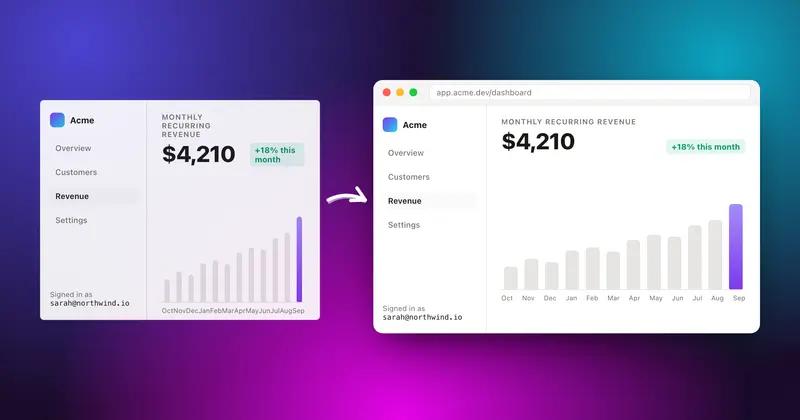
A screenshot that looks fine zoomed in on your monitor can turn to mush at the width X renders it in a feed. Composing with padding and a frame, then checking it small, catches that before you post.
Motion that actually plays in the feed
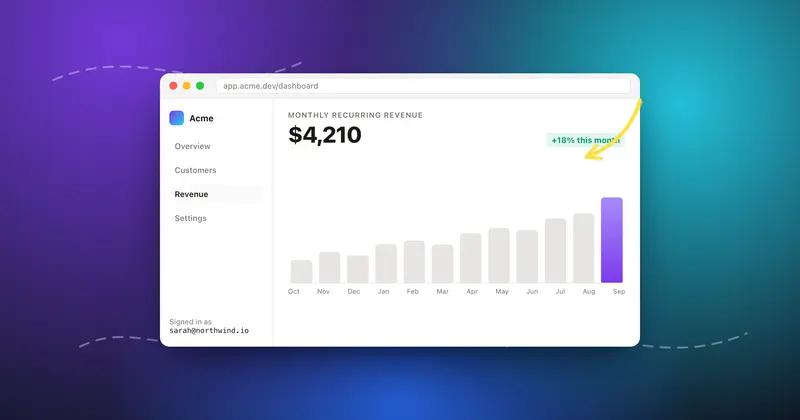
GIF and MP4 exports both autoplay on X, so a screenshot with a self-drawing arrow or an animated background keeps its motion once it is posted, not just in your editor.
FAQ
Questions people ask
Does this fake or generate a fake tweet?
No. It is an editor for the screenshot you attach to a real post, not a tool for mocking up a tweet that does not exist.
What canvas size should I use for an X post?
Use the X post preset in the canvas size options. It is sized for how X displays images in the feed, so you are not left cropping or guessing.
Is there a preset for OG images too?
Yes, 1200x630 is available as a canvas size preset, which is the standard size link preview cards use.
Will GIF and MP4 exports autoplay when posted on X?
Yes, both formats autoplay in the X feed, which is why they are worth using over a static PNG when the content benefits from motion.
Do I need to sign up to export a PNG for X?
No, PNG export is free with no signup. Pro removes the watermark and unlocks additional export options.
Related tools
Same editor, different job

Try it on a real screenshot
Paste from your clipboard and you are editing in under a second.