
Hide API keys in a screenshot before you post
Run a local scan, tick the keys it finds, blur them in one click. The image never leaves your browser.
Free. No signup. Paste with ⌘V and start. Your screenshot stays in your browser.
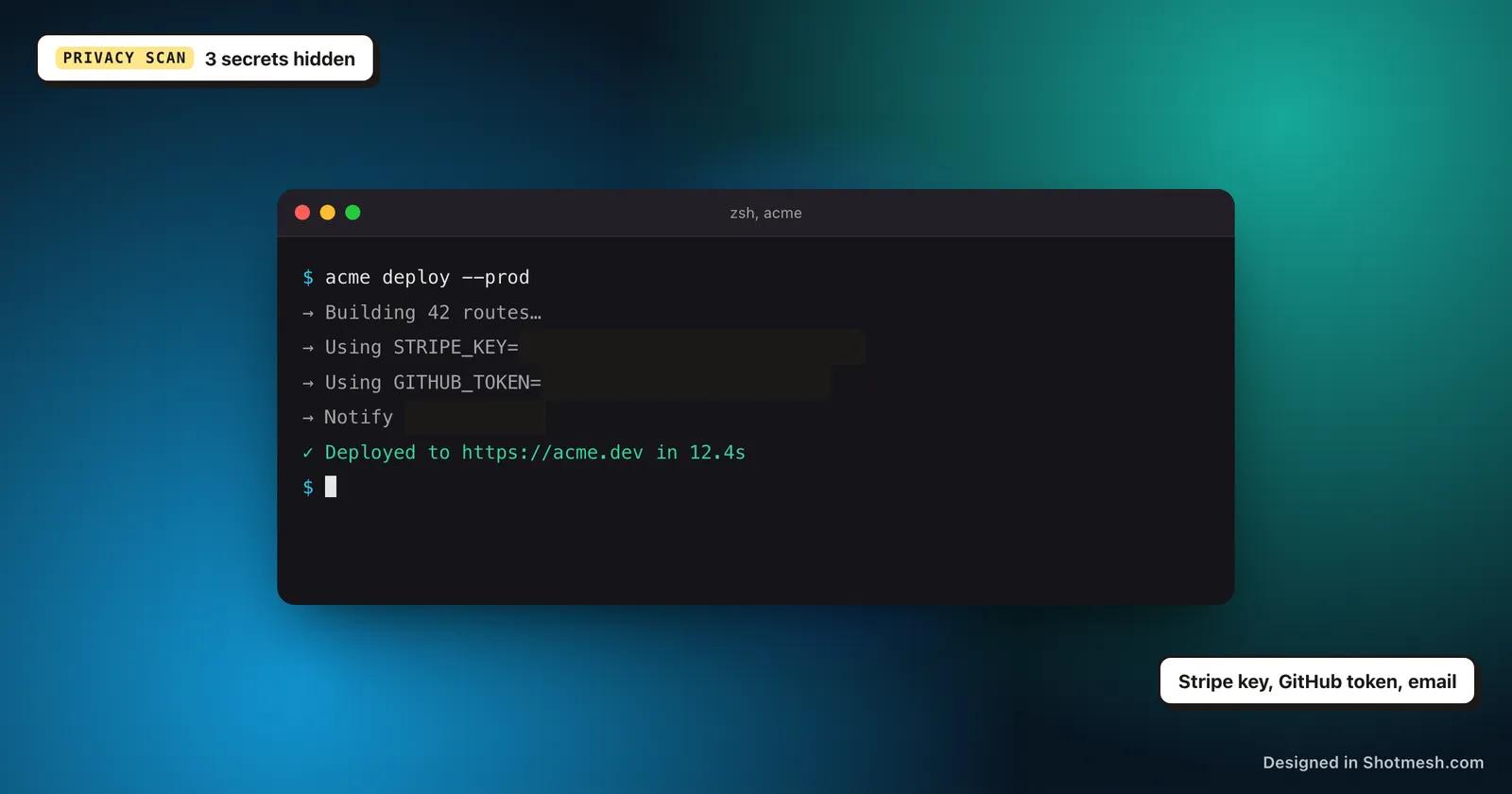
You are showing off a working integration, a Stripe dashboard, a terminal output, a .env file open next to your code. The demo is the point. The key sitting in the corner of the window is not, but it is right there in the screenshot anyway.
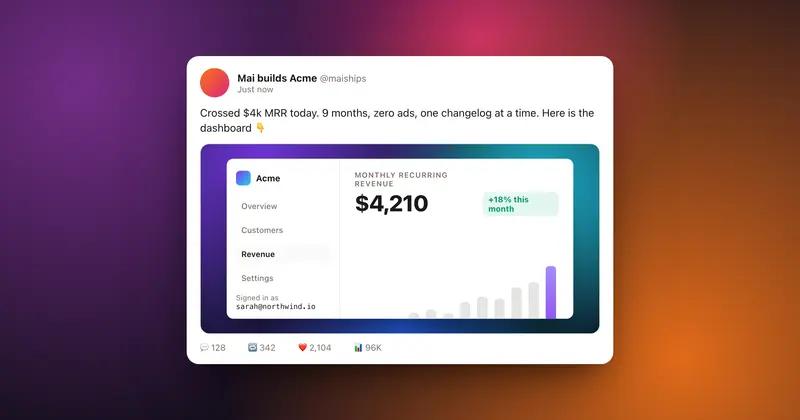
Manually cropping or drawing a black box over a key works until you miss one, or until someone zooms into the one you blurred with a light 20% opacity rectangle and reads it straight through. Screenshots posted on X get archived, cached and re-shared, so a half-hidden key does not stay hidden for long.
Shotmesh runs an OCR pass on the image locally, in your browser, using Tesseract. It looks for patterns that match Stripe keys, GitHub tokens, AWS access keys and JWTs, then groups every match so you can blur, pixelate or black-bar all of them at once.
How it works
How to hide API keys in a screenshot before you post
- 01
Paste or drop your screenshot
Paste with Cmd+V or drag the image into the editor. Nothing uploads, the file stays in your browser tab.
- 02
Run the privacy scan
Click the scan button. Local OCR reads the text in the image and groups anything that looks like a key: Stripe, GitHub, AWS, JWT, plus emails and other sensitive strings if present.
- 03
Tick the API key group and choose a style
Select the API key group, pick blur, pixelate or black bar, and every matching key in the image gets covered in one pass.
- 04
Style the frame and export
Add a macOS or terminal frame, drop in a background, then export as PNG, GIF or MP4 for your X post.
Why Shotmesh
What you get that a plain crop does not
The scan runs on your machine
OCR happens locally with Tesseract in the browser. Your screenshot is never sent to a server to be scanned, so a key in a screenshot of a private dashboard stays private during the process too.
One tick covers every match
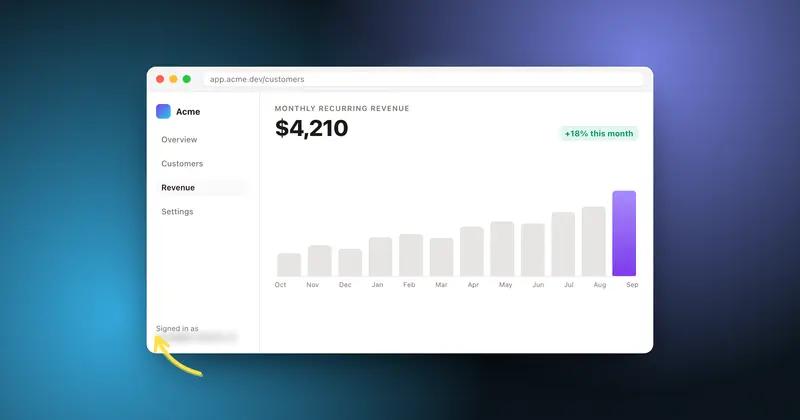
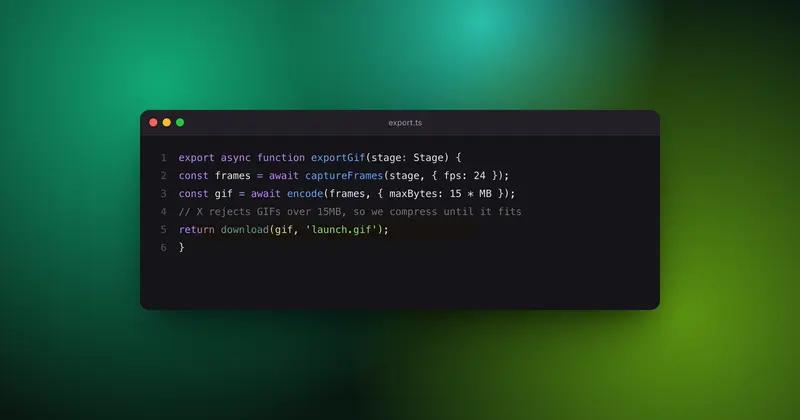
A single screenshot can have a key in the URL bar, one in a terminal command and one in a code editor. The scan finds all of them by type and lets you cover the whole group in one click instead of drawing boxes by hand.
You keep the demo, lose the risk
Blurring or black-barring just the key means the rest of your dashboard, terminal or code stays fully readable. People still see the integration working, they just cannot read the secret.
FAQ
Questions people ask
Does the OCR scan upload my screenshot anywhere?
No. The scan runs locally in your browser using Tesseract. The image is not sent to a server at any point, before or after the scan.
Which key formats does it detect?
It matches common patterns for Stripe keys, GitHub tokens, AWS access keys and JWTs, along with emails, phone numbers, card numbers, amounts and @handles.
Can I blur just the key and leave the rest of the screenshot untouched?
Yes. The scan groups matches by type, so you can tick only the API key group and leave emails or other text alone, or blur everything at once.
What is the difference between blur, pixelate and black bar?
Blur softens the text so it is unreadable but the shape of the UI stays visible. Pixelate is a stronger, blockier cover. Black bar fully hides the area with a solid rectangle. Pick whichever fits the look of your post.
Do I need an account to use the privacy scan?
No signup is required. Open the editor, paste your screenshot, run the scan and export. The privacy scan and PNG export are free.
Related tools
Same editor, different job
Try it on a real screenshot
Paste from your clipboard and you are editing in under a second.