
Blur every email and handle in one click
Scan finds every email, @handle and phone number in the image so you can cover them all at once, locally.
Free. No signup. Paste with ⌘V and start. Your screenshot stays in your browser.
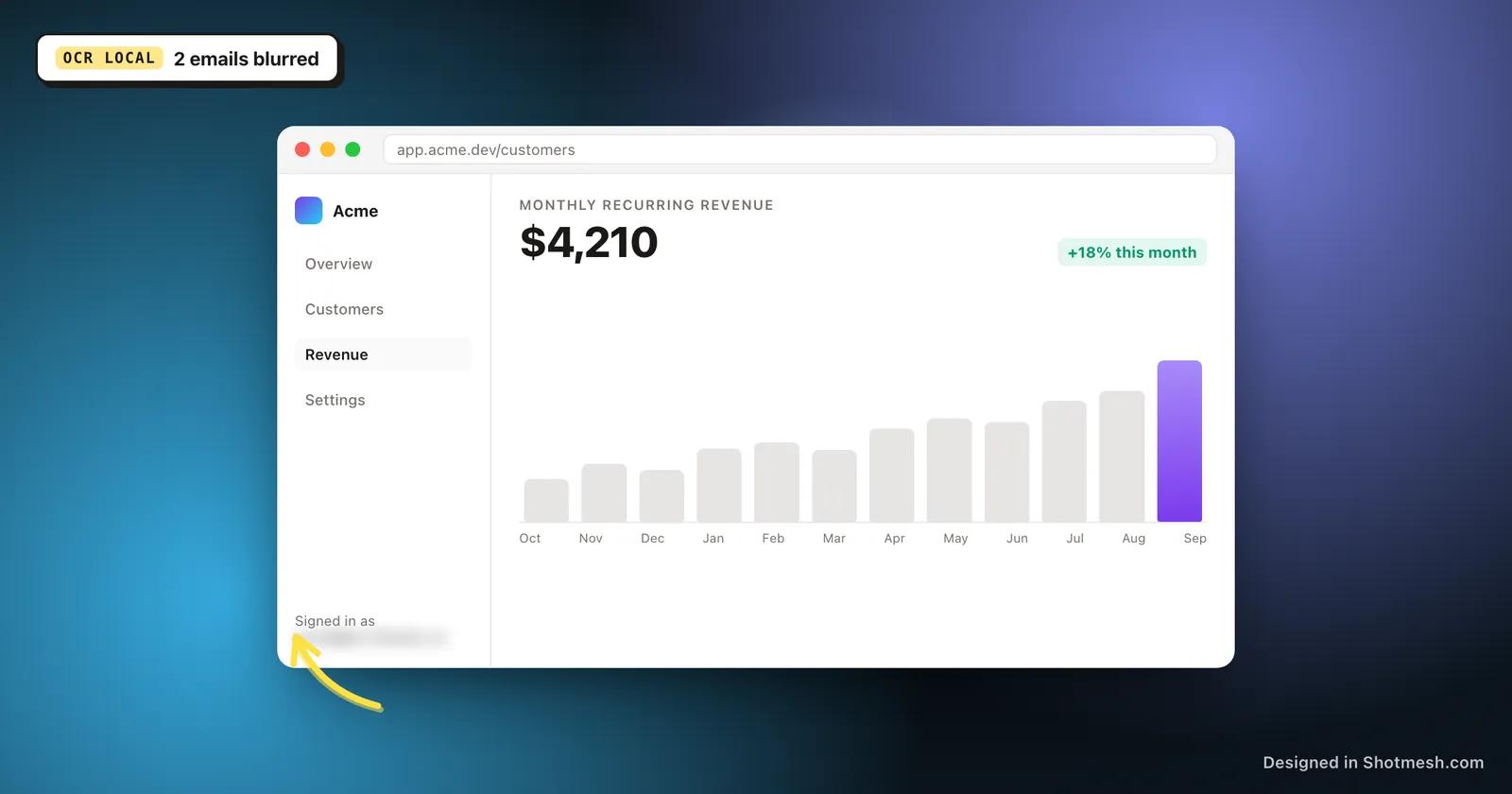
A support dashboard screenshot, an inbox with a thread you want to reference, a CRM view with customer rows visible. These are useful screenshots to share when you are explaining a bug or showing a feature, but they usually carry real email addresses, sometimes phone numbers, sometimes handles that belong to actual people who never agreed to be in your X post.
Blurring each one by hand means zooming in, drawing a box, checking you did not miss the second email lower in the thread. Inbox and dashboard screenshots often have five or ten instances of the same kind of data scattered across rows, so a manual pass is slow and easy to get wrong.
Shotmesh scans the image locally with OCR, groups every email, @handle and phone number it finds, and lets you blur, pixelate or black-bar the whole group in one click. You review what it found before you cover anything.
How it works
How to blur every email and handle in one click
- 01
Drop in your screenshot
Paste or drag the inbox, dashboard or chat screenshot into the editor. It loads and stays in your browser.
- 02
Run the scan
Click scan and local OCR reads the image, finding emails, @handles, phone numbers and other matches, grouped by type.
- 03
Tick the groups you want hidden
Select emails, handles, phone numbers, any combination, and choose blur, pixelate or black bar for that group.
- 04
Finish the shot and export
Add a window frame or background if you want, then export as PNG for a quick post or GIF and MP4 for a walkthrough.
Why Shotmesh
What you get that a plain crop does not
Catches repeated instances, not just the first one
A support thread might show the same email three times. The scan groups all instances of a type together, so covering the group covers every occurrence in the screenshot, not just the one you noticed.
Everything happens in your browser
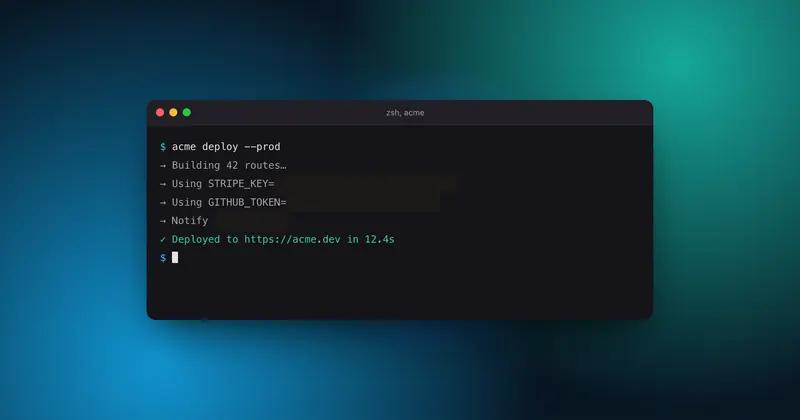
OCR runs locally with Tesseract. A dashboard screenshot full of customer data never gets uploaded anywhere to be processed, before or after you cover it.
Different data, different treatment
Blur emails but leave the phone number group alone, or black-bar everything. The groups are independent, so you decide what gets covered without affecting the rest of the screenshot.
FAQ
Questions people ask
Does it detect Twitter/X handles as well as emails?
Yes. The scan groups @handles separately from emails, so you can choose to blur one, both, or neither.
Will it also catch phone numbers in the same screenshot?
Yes, phone numbers are their own group in the scan results, alongside emails, handles, card numbers and amounts.
Is the scan accurate on screenshots with small text?
OCR accuracy depends on image resolution and font size. Very small or low-contrast text can be missed, so it is worth a quick visual check of the result before you export.
Does blurring change the size of the screenshot?
No, blur, pixelate and black bar are applied on top of the image at its existing dimensions, they do not crop or resize it.
Is this free to use?
Yes. The privacy scan and PNG export are free with no signup. Pro removes the watermark and unlocks extra export options.
Related tools
Same editor, different job
Try it on a real screenshot
Paste from your clipboard and you are editing in under a second.