The Screenshot Privacy Checklist Before You Post a Dashboard or Terminal
Everything to check before posting a dashboard, terminal, or admin panel screenshot: emails, live API keys, card numbers, revenue you didn't mean to share, and more.
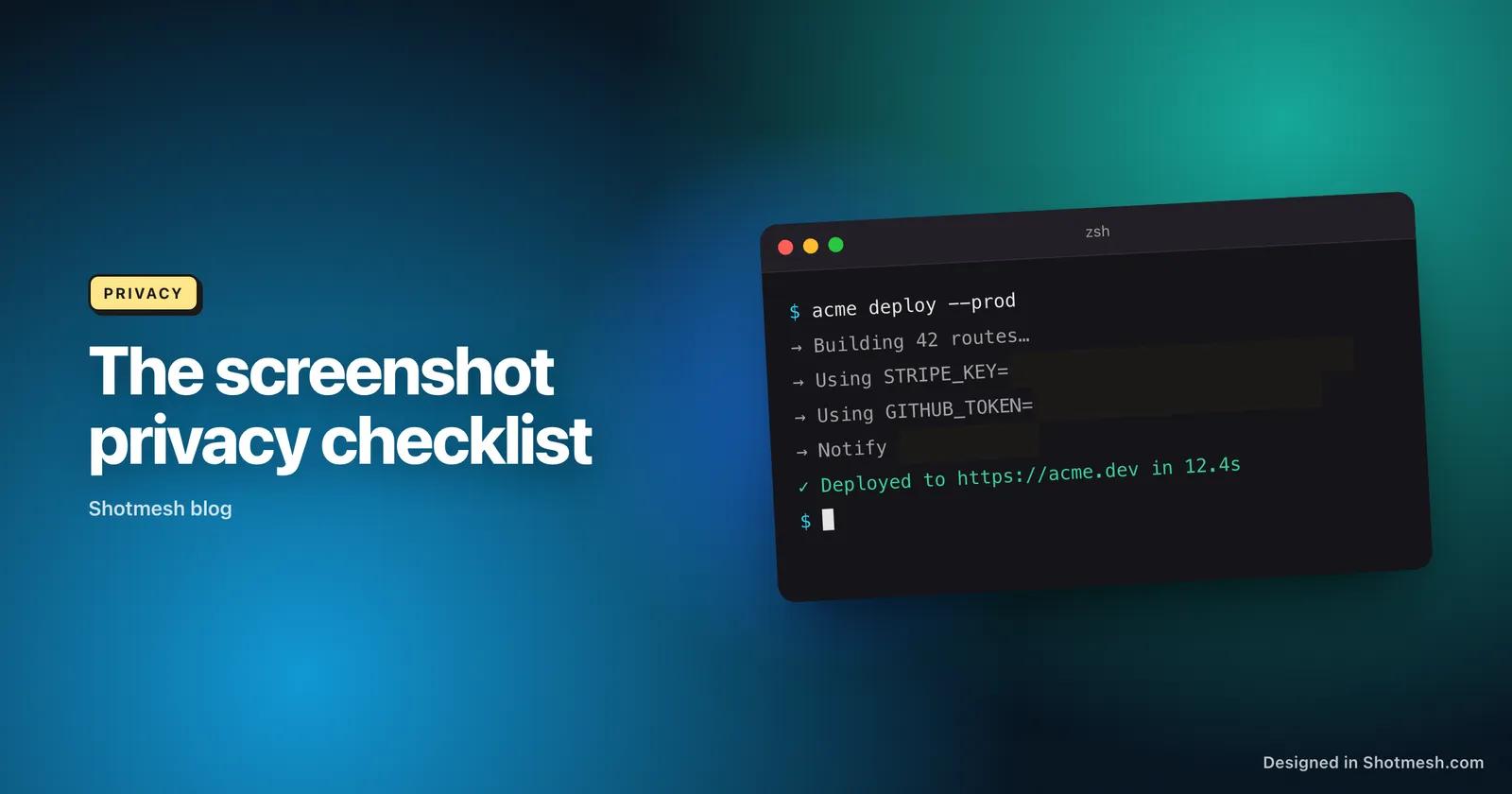
Almost every leaked API key, exposed customer email, or accidentally shared revenue number on X started the same way: someone was in a hurry to post a screenshot and didn't look closely at what was actually in the frame. It's not carelessness exactly, it's that your eyes are trained to look at the thing you meant to show, not the sixteen other things sitting quietly around it.
This is the checklist we run through before posting any dashboard, terminal, or admin screenshot, and the one built into Shotmesh's privacy scan. Go through it once before your next post, then keep it as a habit.
The obvious leaks: emails and API keys
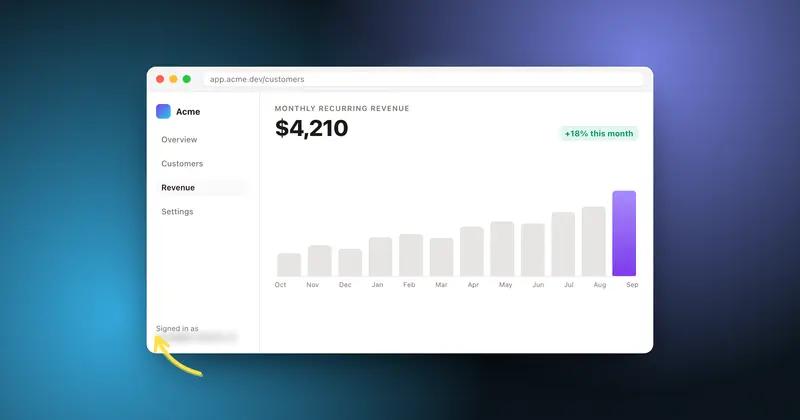
Emails are the most common accidental leak because they show up everywhere: user tables, support tickets, billing pages, error logs. A single customer email in a screenshot is a minor but real privacy problem, and a table full of them is worse.
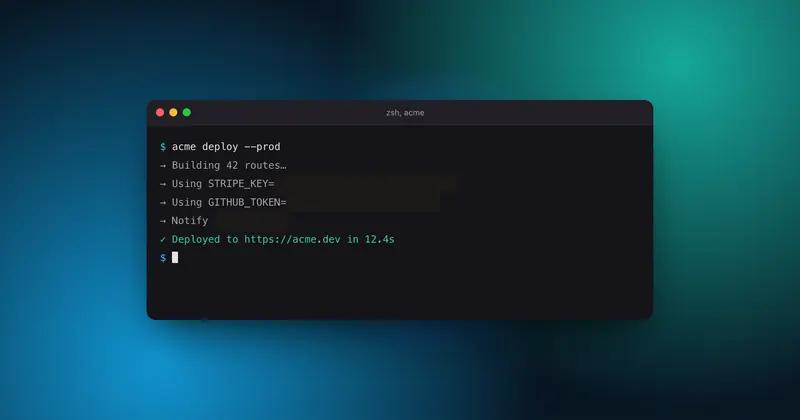
API keys are the higher stakes version of the same mistake. Live keys have recognizable prefixes, which is actually good news because it means you can catch them by pattern before you post. Stripe live secret keys start with sk_live_, GitHub personal access tokens start with ghp_, AWS access keys start with AKIA, and JWTs start with eyJ (the base64 encoding of the JSON header). If any of these are visible anywhere in your frame, including in a background browser tab or a terminal history above your main content, stop before posting.
- Scan every visible email address, not just the ones in your main content area.
- Check for sk_live_ (Stripe), ghp_ (GitHub), AKIA (AWS), and eyJ (JWT) prefixes anywhere in the frame.
- Terminal history above your current command is a common place keys hide in plain sight.
The things around the frame: tabs, bookmarks, and URLs
The content you meant to screenshot is rarely the only thing in the frame. Browser tabs at the top can reveal other projects, client names, or unreleased work. A bookmarks bar can do the same. These are usually harmless, but they're also usually irrelevant to what you're posting, so cropping them out just makes for a cleaner screenshot too.
URL bars deserve a specific check. Query strings often carry session tokens, API keys passed as parameters, or internal IDs that shouldn't be public. A URL like yourapp.com/dashboard?token=abc123 leaks the token the moment it's visible in a screenshot, even if the rest of the page is completely fine.
- Crop out browser tabs and the bookmarks bar unless they're relevant to the post.
- Check the URL bar for query strings carrying tokens, keys, or internal IDs.
- If you can't crop the URL bar out, blur or black-bar just that strip.
Blur, pixelate, or black bar: which one to actually use
These three redaction methods are not interchangeable, and picking the wrong one for the content matters. Blur is fine for larger areas like a face or a background element where you just want to reduce detail, but a light blur on small text can sometimes still be read with enough zoom and sharpening.
Pixelation looks more thorough than blur, but it has a real weakness: on short text at a coarse pixelation level, the block pattern can sometimes be partially reversed, especially if you know the font and can guess the character set (this is a documented weakness with short strings like keys, prices, or codes). It's better than nothing, but it's not the safest choice for something like an API key.
A solid black bar is the safest option because there's nothing left to reconstruct, it fully removes the pixel information rather than smearing it. Use it for anything high stakes: API keys, card numbers, and anything you'd be genuinely upset to see leaked.
- Blur: fine for faces or low-stakes background detail.
- Pixelate: okay for medium-stakes content, avoid it for short strings like keys or codes.
- Black bar: use for API keys, card numbers, and anything high stakes.
Why local scanning beats uploading to a redaction service
A lot of screenshot redaction tools work by having you upload your image to their server, run detection there, and send it back. That means the very screenshot you're worried about leaking an API key gets sent, key and all, to a third party server before you've redacted anything. If the goal is privacy, uploading the unredacted image anywhere defeats the point.
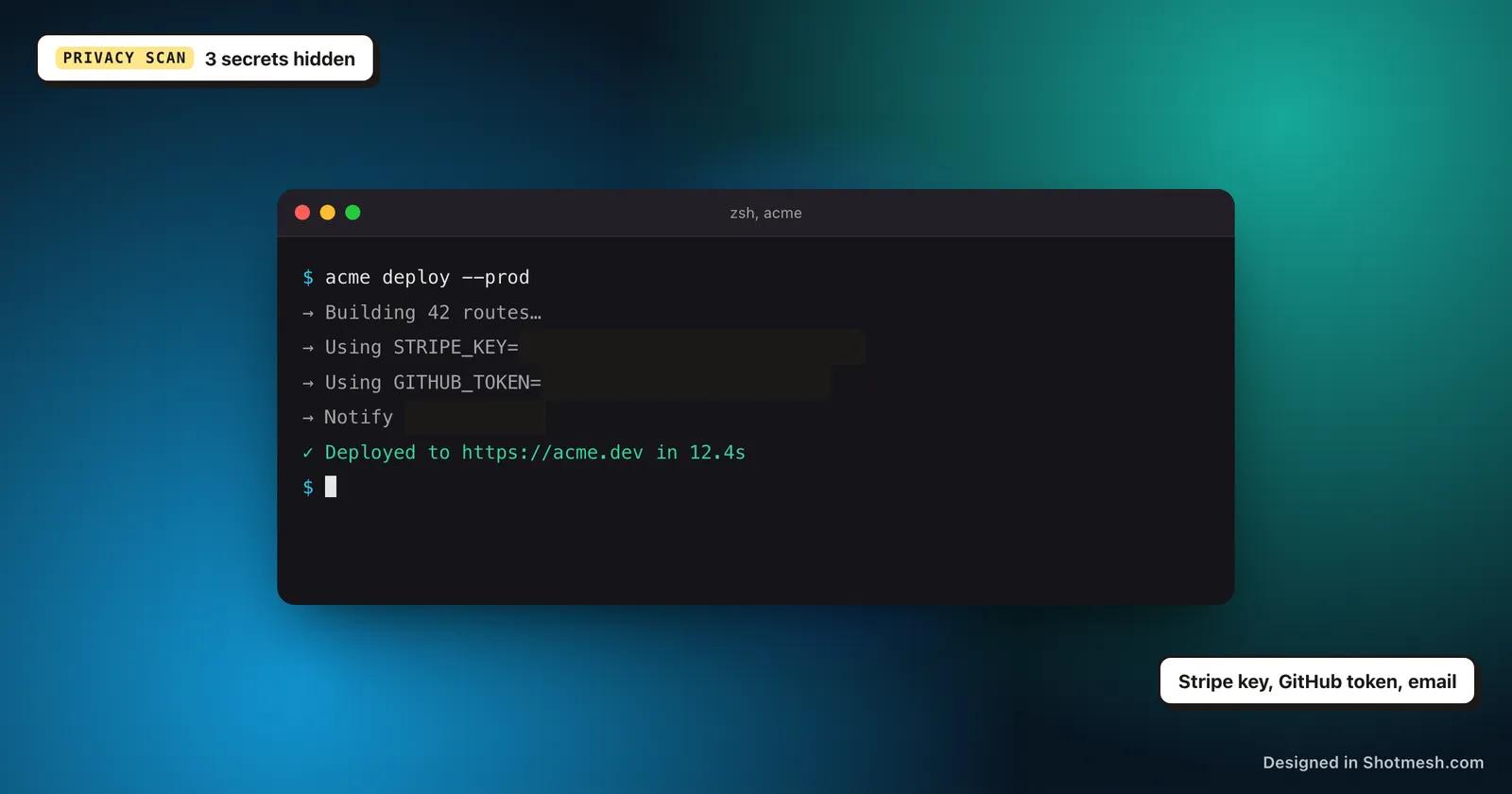
Shotmesh's privacy scan runs local OCR entirely in your browser. It reads the text in your screenshot on your machine, flags emails, API keys (Stripe, GitHub, AWS, JWT patterns), card numbers, amounts, phone numbers, and @handles, and lets you blur, pixelate, or black-bar each group, all without the image ever leaving your device. The unredacted version never touches a server, including ours.
Run a local privacy scan on your next screenshot before you post it, free and no upload.