
Make a code screenshot worth posting
Frame it like a real window, drop in a dark background, blur any secrets, export straight to X.
Free. No signup. Paste with ⌘V and start. Your screenshot stays in your browser.
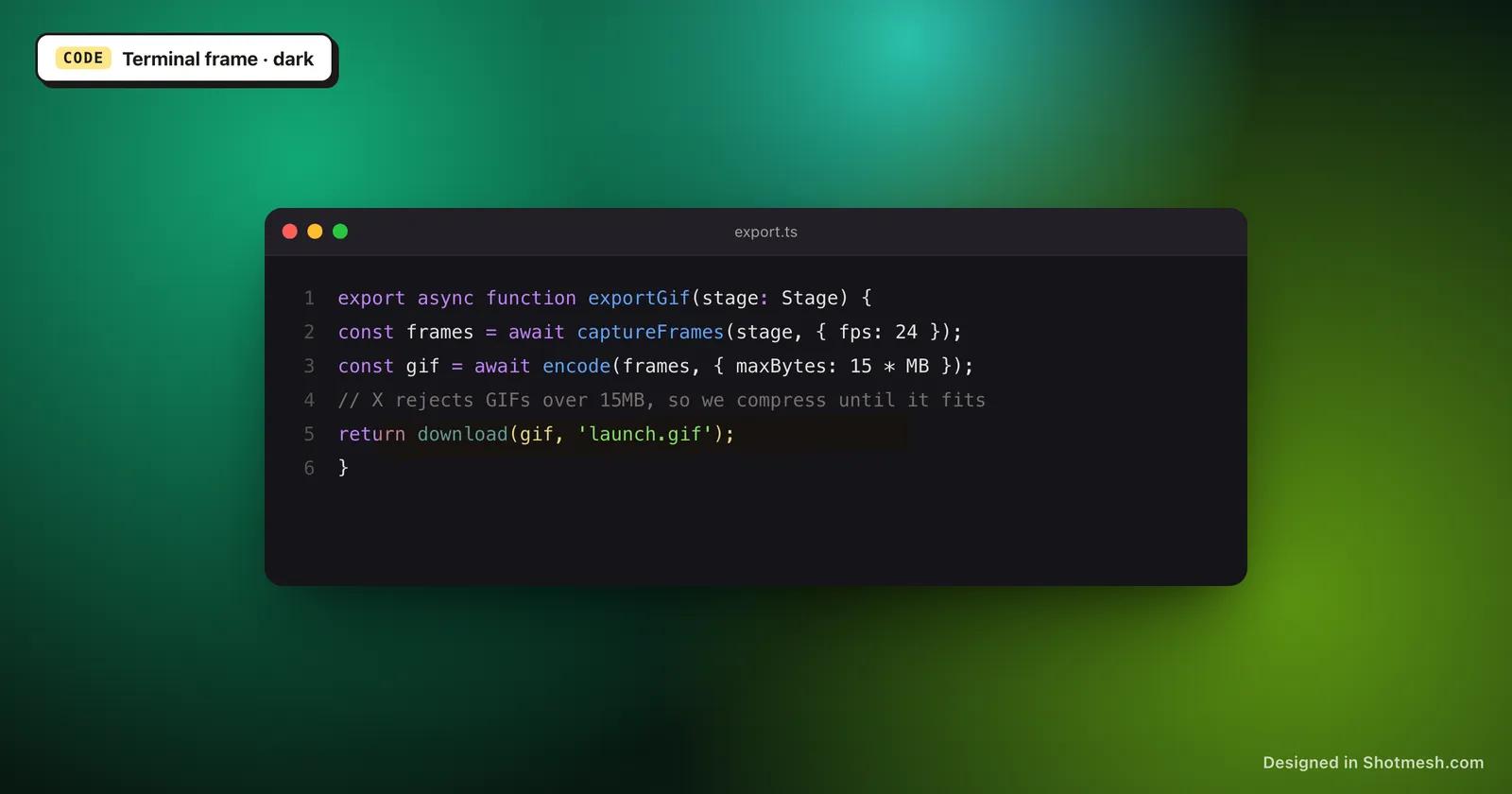
A raw screenshot straight out of your editor or terminal, cropped tight to the window, works fine for a bug report in Slack. It does not work as well on X, where a code screenshot competes for attention against everything else in the feed and needs a frame and some breathing room to read as a deliberate post instead of a hasty crop.
Shotmesh adds a macOS, browser or terminal chrome frame around the screenshot, in light or dark, so it reads like an actual window instead of a floating rectangle of text. A dark aurora mesh background behind it keeps the focus on the code, which is usually already dark-themed in most editors and terminals.
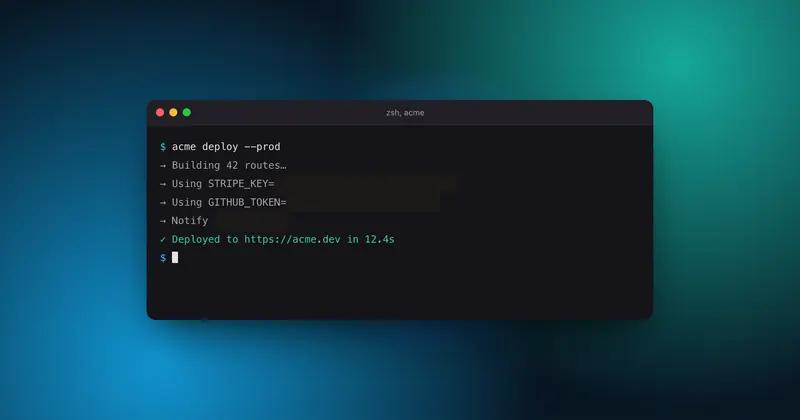
Before you post, the privacy scan catches anything you would rather not share publicly, an API key sitting in a .env tab, a token in a terminal command, an internal hostname. Tick it, blur it, and the rest of the code stays fully readable.
How it works
How to make a code screenshot worth posting
- 01
Paste the code screenshot
Screenshot your editor or terminal as usual, then paste or drop it into the editor.
- 02
Add a matching frame
Pick a macOS, browser or terminal frame in dark mode to match your code theme, giving the shot a real window look.
- 03
Drop in a dark background
Use a dark Aurora mesh preset behind the frame so the code stays the visual focus, adjust padding and shadow to taste.
- 04
Scan for secrets, then export
Run the privacy scan to catch any exposed keys or tokens, blur what it finds, and export as PNG for a quick post or GIF/MP4 if you want the terminal output to animate in.
Why Shotmesh
What you get that a plain crop does not
Frames make code read as intentional
A terminal or macOS chrome frame around the screenshot signals this is a deliberate post, not a rushed crop. Light or dark options mean it can match whatever theme your editor is already using.
Dark backgrounds keep code readable
Most code screenshots are already dark-themed. A dark Aurora mesh background behind the frame keeps contrast high and avoids the glare a bright gradient would put right next to your syntax highlighting.
One scan catches what you might miss in code
Keys and tokens hide easily in a wall of code, especially in a .env tab or a terminal history. The privacy scan finds Stripe, GitHub, AWS and JWT patterns automatically so you are not proofreading every line before you post.
FAQ
Questions people ask
Can I use a terminal frame instead of a browser frame?
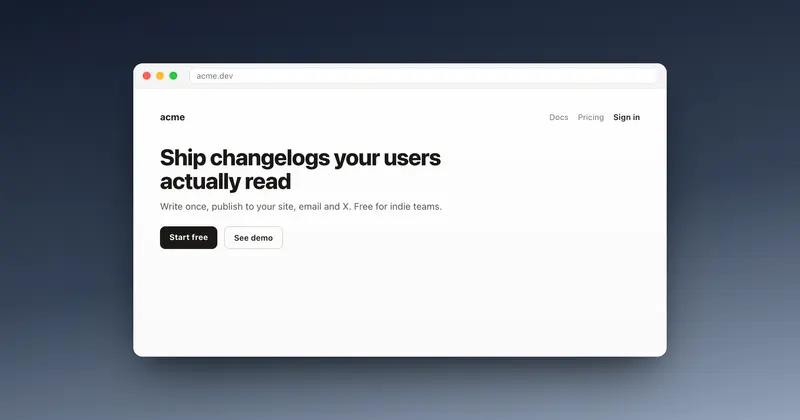
Yes, terminal chrome is one of the frame options, alongside macOS and browser frames, each available in light or dark.
Will the privacy scan work on a screenshot of code?
Yes, the scan reads all text in the image including code, so keys or tokens typed inline or sitting in a .env file are still caught.
What background works best behind a code screenshot?
A dark Aurora mesh preset generally keeps the most contrast with code, since it does not compete with syntax highlighting the way a bright gradient can.
Can I animate the terminal output somehow?
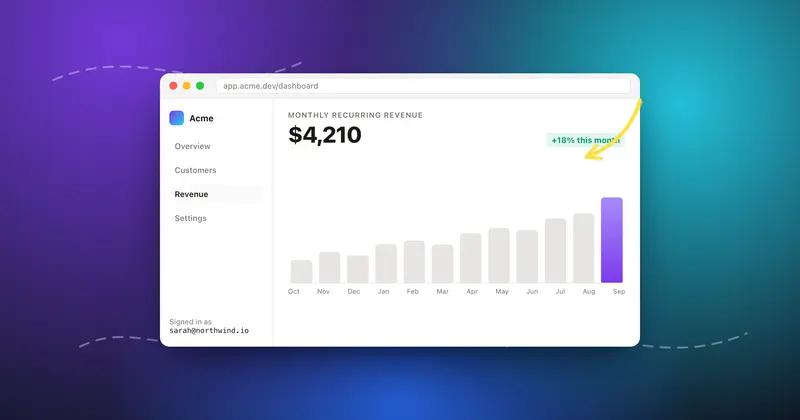
You can add self-drawing annotations, like an arrow pointing at a command, and export as GIF or MP4 so the annotation animates in, though the terminal text itself stays static.
Is beautifying a code screenshot free?
Yes, frames, backgrounds, the privacy scan and PNG export are all free with no signup required.
Related tools
Same editor, different job
Try it on a real screenshot
Paste from your clipboard and you are editing in under a second.