
Turn a static screenshot into a looping GIF
Add an animated background and arrows that draw themselves, export a GIF sized to fit X, right from the browser.
Free. No signup. Paste with ⌘V and start. Your screenshot stays in your browser.
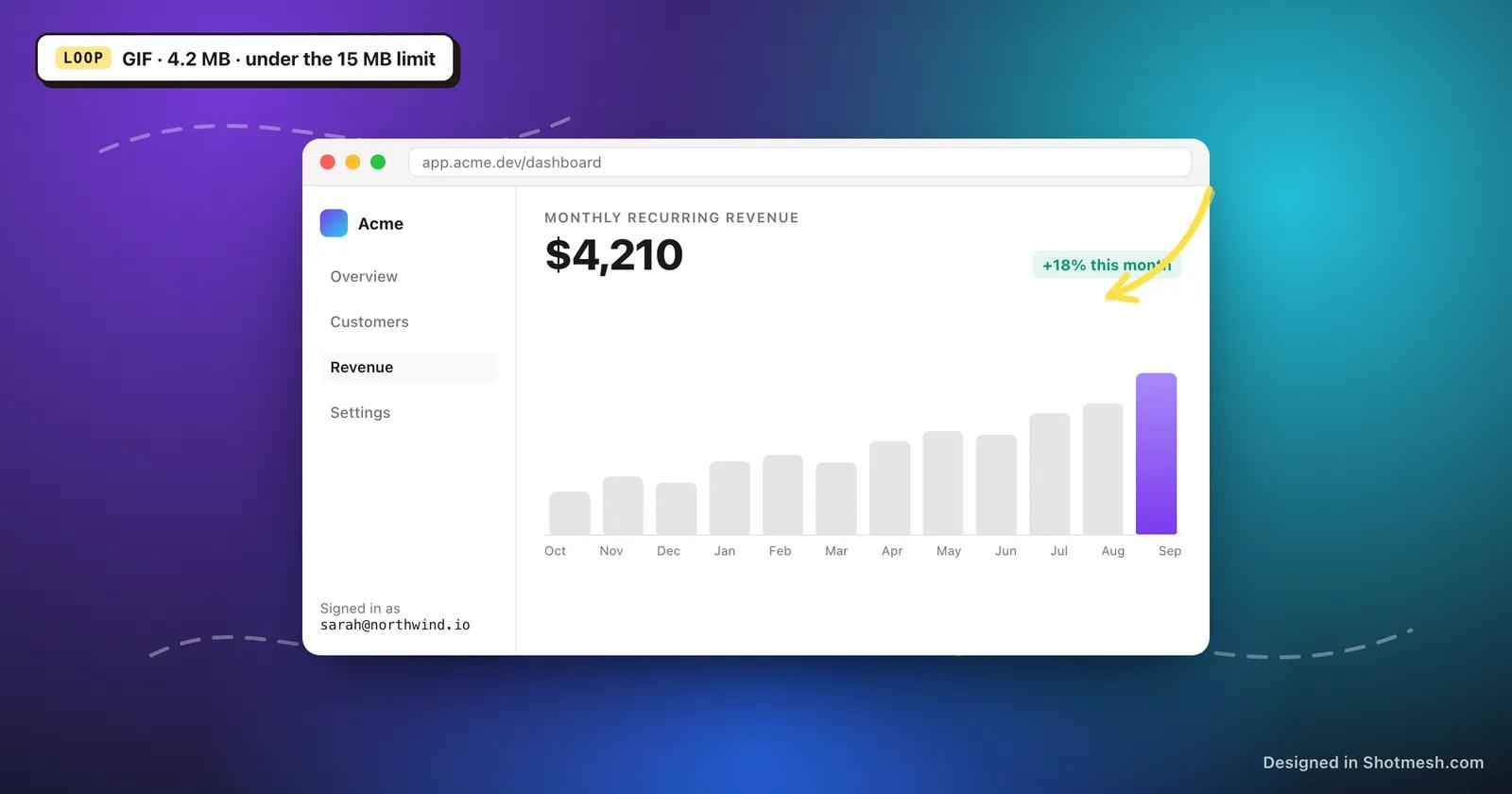
A static screenshot in a feed full of video and GIFs is easy to scroll past. Motion catches the eye first, and a screenshot with an animated background or an arrow that draws itself toward the button you are highlighting holds attention a beat longer than a flat PNG.
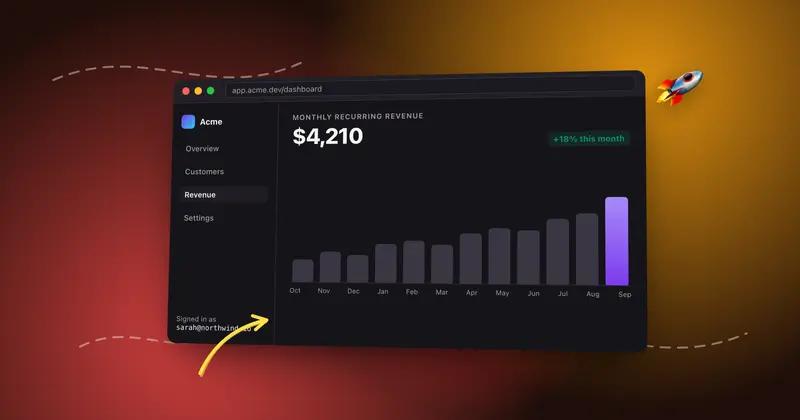
You do not need screen recording software or a video editor to get there. Shotmesh lets you drop an animated background or GIF/video background behind your screenshot, layer on stickers, and set your rough.js annotations to animate as they draw, all inside the same editor where you crop and frame the shot.
When you export, GIF output is compressed automatically to stay under the 15MB limit for uploads on X, so you do not have to guess at settings or run the file through a separate compressor before posting.
How it works
How to turn a static screenshot into a looping GIF
- 01
Load your screenshot
Paste or drop the image into the editor. It loads locally, no upload happens at this stage or any other.
- 02
Add an animated background
Pick an animated preset, or bring in your own GIF or video background, to give the shot movement behind the content.
- 03
Draw annotations and let them animate
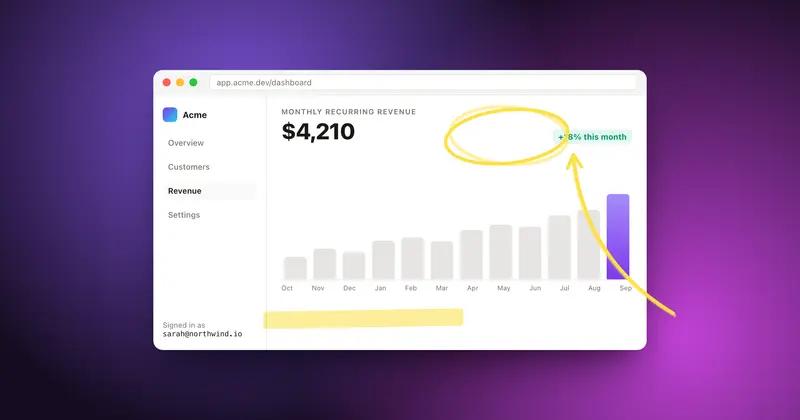
Add arrows, underlines or highlight markers with rough.js, then turn on the draw-in animation so they sketch themselves in during export.
- 04
Export as GIF
Choose GIF export. The file is auto-compressed to stay under 15MB, ready to attach to an X post without extra steps.
Why Shotmesh
What you get that a plain crop does not
Sized for X without manual compression
GIF export checks the file size and compresses automatically so the export fits under the 15MB limit X enforces on uploads. You do not need a separate tool to shrink it before posting.
Arrows and backgrounds move together
The animated background and the self-drawing annotations render in the same export, so the whole clip, not just one element, has motion when it loops in someone's feed.
Still just a screenshot to start
You are not recording your screen or building a video from scratch. You start from a single screenshot and add motion around it, which is faster when you just want to highlight one moment.
FAQ
Questions people ask
What is the maximum file size for the GIF export?
Exports are auto-compressed to stay under 15MB, which is the upload limit X applies to GIFs, so the file is ready to post without further adjustment.
Can I use a video as the background instead of a GIF?
Yes, animated backgrounds can be a GIF or a video file, both work as a looping background behind your screenshot.
How do the self-drawing arrows work?
Annotations are drawn with rough.js for a hand-drawn look, and you can turn on an animation so the arrow, underline or highlight sketches itself in over the course of the export instead of appearing all at once.
Should I export GIF or MP4?
GIF is the simpler choice for a quick loop that plays automatically wherever it is embedded. MP4 with H.264 gives you a smaller file at higher quality for longer or more detailed clips, and also autoplays on X.
Do I need to install anything to export a GIF?
No. Everything renders locally in the browser, there is nothing to install and no server processing involved.
Related tools
Same editor, different job
Try it on a real screenshot
Paste from your clipboard and you are editing in under a second.