
Put your app screenshot in an iPhone
Frame an app screenshot inside an iPhone, set the canvas to a vertical App Store size or a square X post, and export. Runs entirely in your browser.
Free. No signup. Paste with ⌘V and start. Your screenshot stays in your browser.
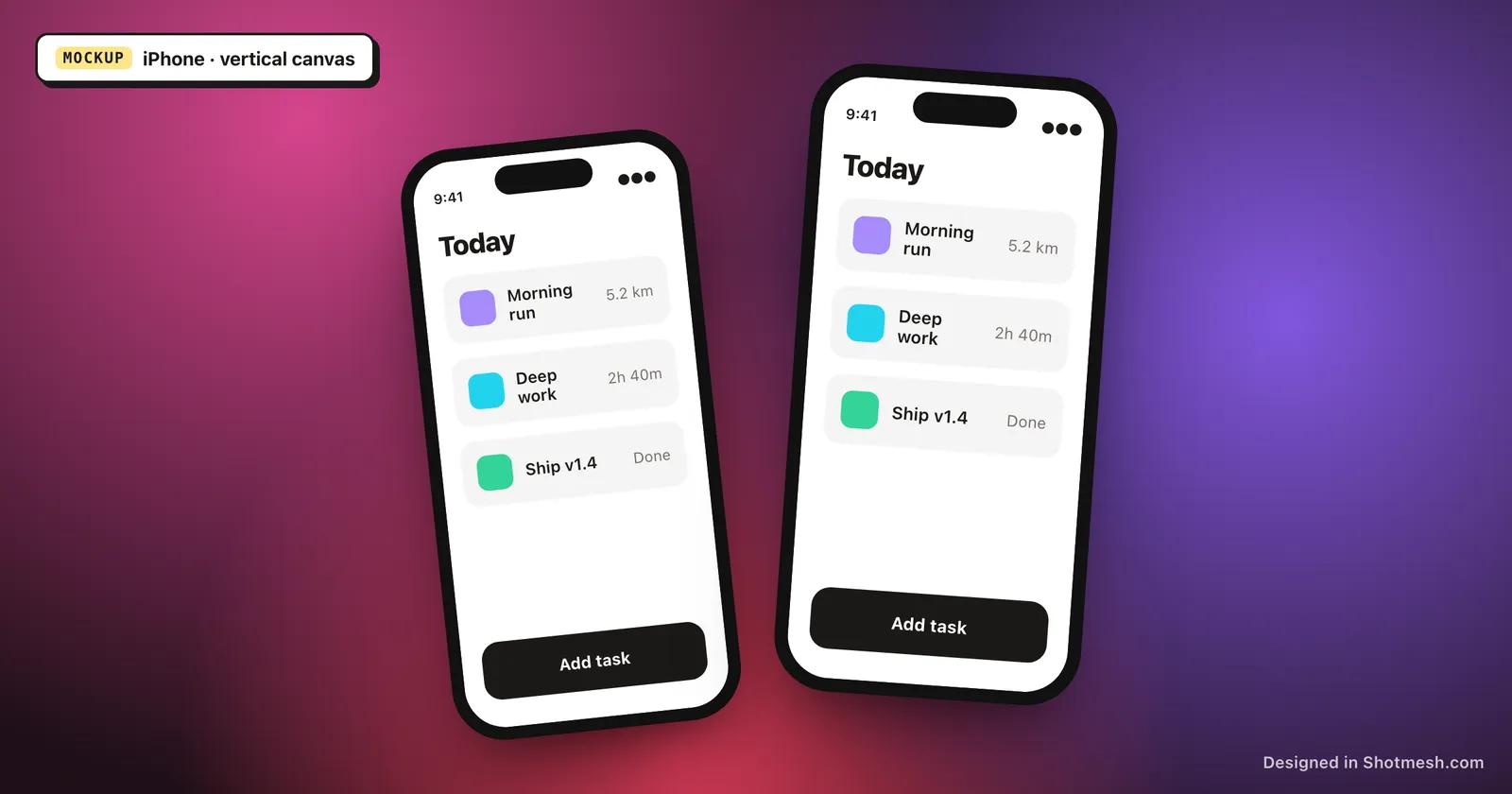
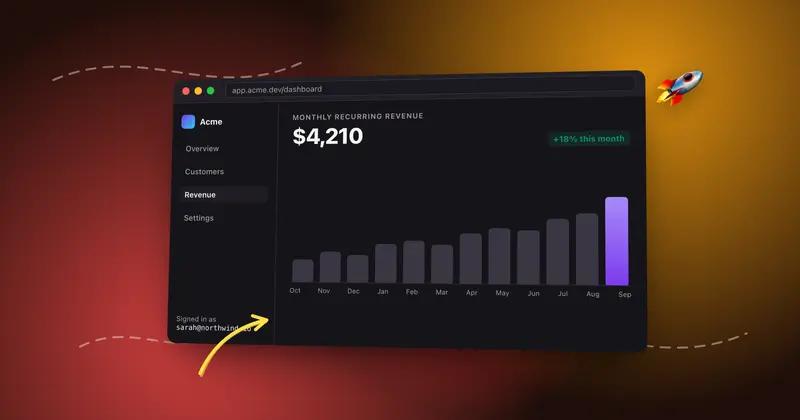
App screenshots look more like a real product and less like a raw capture once they're inside an iPhone frame. Shotmesh does this the moment you paste or drop an image, no upload and no signup, and the whole thing runs in your browser tab.
Because app screenshots are usually tall, the canvas can be set to a vertical size that matches App Store screenshot dimensions, or switched to a square or landscape crop for an X post. Add a gradient background from the 44 presets, an image, or an animated GIF or video behind the phone, plus a shadow and padding to finish the composition.
Export a static PNG for App Store listings and landing pages, or MP4 for a post that autoplays on X. Editing, frames, backgrounds, and PNG export are free; Pro removes the free plan's watermark and opens up the other export formats.
How it works
How to put your app screenshot in an iPhone
- 01
Add your app screenshot
Paste it from your clipboard or drop the file onto the canvas. It's ready to edit immediately, nothing gets uploaded.
- 02
Choose iPhone as the device
Switch the mockup to iPhone. The screenshot fits inside the screen area of the frame.
- 03
Set the canvas for App Store or X
Pick a vertical canvas size for App Store screenshots, or an X post size if you're sharing on Twitter.
- 04
Export
Choose PNG, GIF, or MP4 and save the file. Rendering happens locally, nothing is sent to a server.
Why Shotmesh
What you get that a plain crop does not
Made for both App Store and X
Canvas size presets cover App Store screenshot dimensions and X post sizes, so the same tool works for a store listing and a launch tweet.
No account, no upload
You paste an image and start editing immediately. There's no signup wall and no server processing your screenshot.
Free for the core workflow
Framing, backgrounds, and PNG export cost nothing. Pro is only for removing the watermark or exporting GIF and MP4.
FAQ
Questions people ask
Is this iPhone mockup generator free to use?
Yes. Adding the iPhone frame, styling the background, and exporting a PNG are free. The free export carries a small watermark, which Pro removes.
Can I size the mockup for App Store screenshots?
Yes, pick a vertical canvas preset sized for App Store screenshots so the export matches what the App Store expects.
Can I use the same mockup for an X post?
Yes, switch the canvas to the X post preset and the composition reflows to that shape.
Do I need to sign up to export?
No. Free exports as PNG don't require an account. Pro is only needed if you want GIF, MP4, or no watermark.
Does my screenshot get uploaded anywhere?
No, the image stays in your browser the entire time, including during export.
Try it on a real screenshot
Paste from your clipboard and you are editing in under a second.