
Make a GIF for your GitHub README
GitHub README renders GIFs inline but not MP4, so a compressed GIF is the only way to show your project moving.
Free. No signup. Paste with ⌘V and start. Your screenshot stays in your browser.
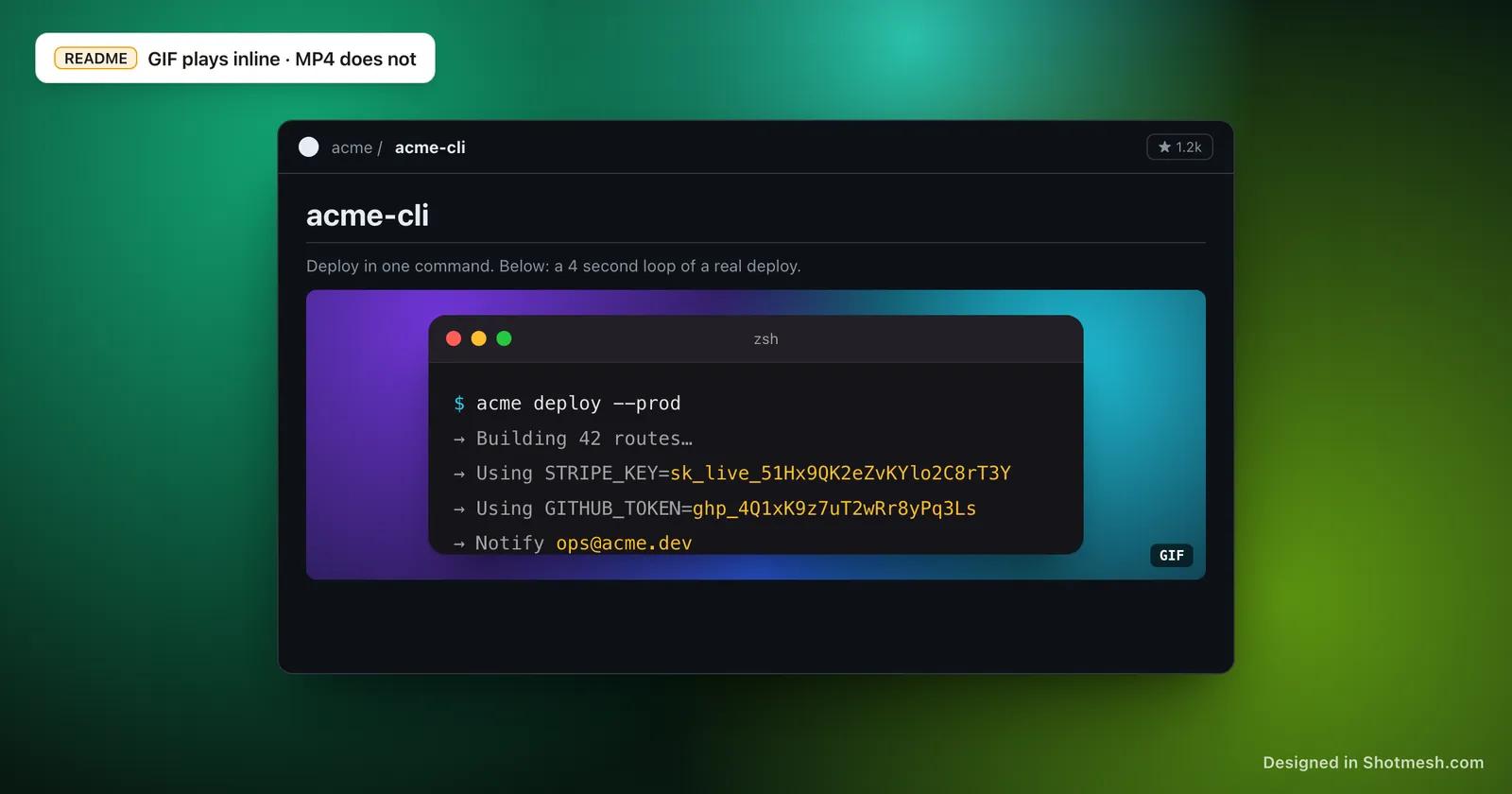
A GitHub README with a wall of text and no visual is easy to scroll past. A README with a GIF of the CLI running or the UI in action is the difference between someone reading the setup instructions and someone closing the tab.
GitHub renders images and GIFs directly in Markdown, but it does not play MP4 files inline, an MP4 in a README just shows as a download link. That makes GIF the only format that actually demonstrates motion on the README itself, and it needs to stay small, a few megabytes at most, or the README loads slowly for anyone visiting the repo.
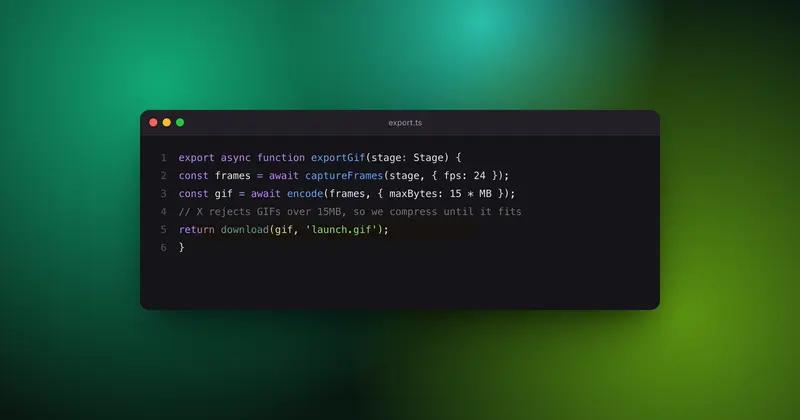
Shotmesh exports GIF with automatic compression to keep the file under 15MB, so a demo recording or a sequence of annotated screenshots turns into a GIF that is light enough to sit at the top of a README and load fast.
How it works
How to make a GIF for your GitHub README
- 01
Bring in your screen recording or screenshot
Drop a video clip or a screenshot into the editor. Everything runs locally in the browser, nothing uploads.
- 02
Frame it for the README
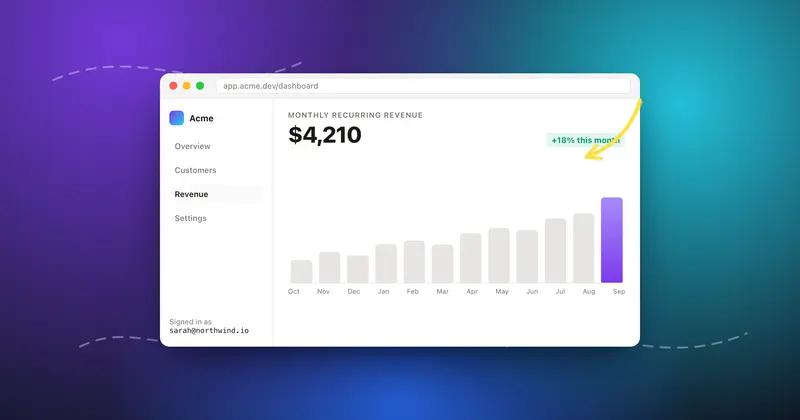
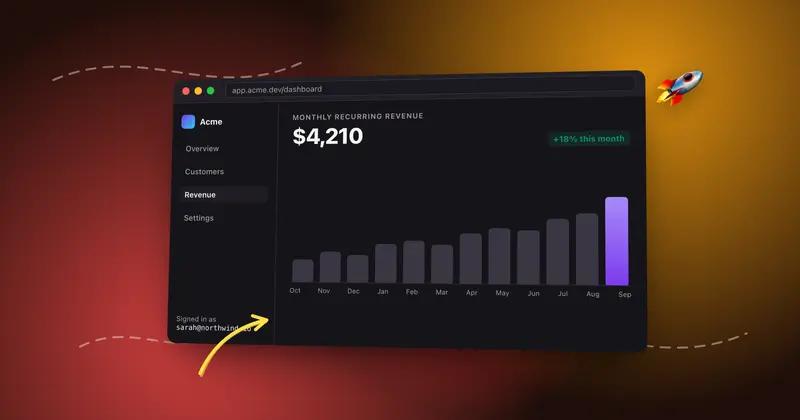
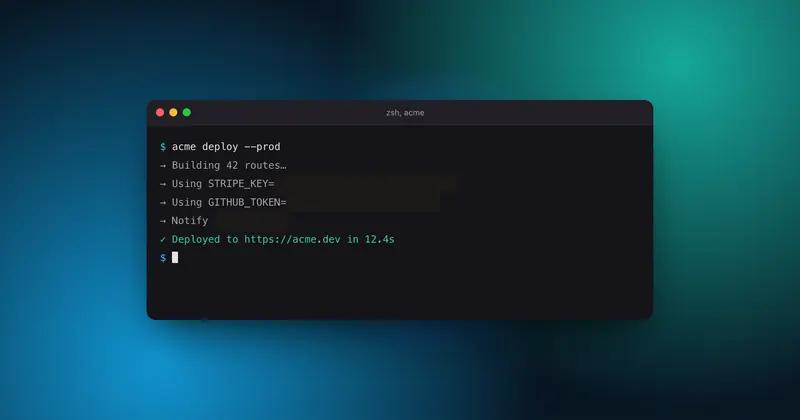
Add a terminal or macOS frame if the shot is a CLI or app window, and use annotations like arrows or highlights to point out what changed.
- 03
Export as GIF
Export renders the GIF locally with automatic compression that keeps the file under 15MB, so it stays fast to load once embedded.
- 04
Embed it in the README
Drop the GIF into the repo or an image host and reference it with standard Markdown image syntax. Keep a still PNG on hand too for docs sites that need a static fallback.
Why Shotmesh
What you get that a plain crop does not
GIF is the format GitHub actually plays
README Markdown renders GIFs inline but does not play MP4 files, so GIF is the only way to show a CLI or UI in motion directly on the README page.
Compressed automatically, not manually
Export keeps the GIF under 15MB without you tuning frame rate or color depth by hand, which keeps the README loading fast for anyone landing on the repo.
A still PNG comes from the same edit
If a docs site needs a static fallback instead of a GIF, the same framed, annotated shot exports as PNG too, no need to redo the styling for a second format.
FAQ
Questions people ask
Does GitHub play MP4 files inside a README?
No, GitHub Markdown does not play MP4 inline, it shows as a download link instead. GIF is the format that actually renders and plays directly in a README.
How big can a README GIF be before it slows the page down?
A few megabytes is a reasonable ceiling for a README GIF. Shotmesh auto-compresses exports to stay under 15MB, but smaller is still better for load time.
Can I record my terminal or is this just for screenshots?
Both work. Drop in a screen recording for a CLI demo, or a sequence of screenshots for a step-by-step, and export either as a GIF.
Can I add a frame around the terminal or app window?
Yes, terminal, macOS and browser frames are built in, along with light and dark variants.
Is there a signup required to export the GIF?
No signup. Editing and GIF export run entirely in your browser, with a small watermark on exports unless you remove it with the paid tier.
Try it on a real screenshot
Paste from your clipboard and you are editing in under a second.