
Make a screenshot look right on LinkedIn
Size it for the feed, frame it, and export MP4 instead of GIF so any motion actually plays on LinkedIn.
Free. No signup. Paste with ⌘V and start. Your screenshot stays in your browser.
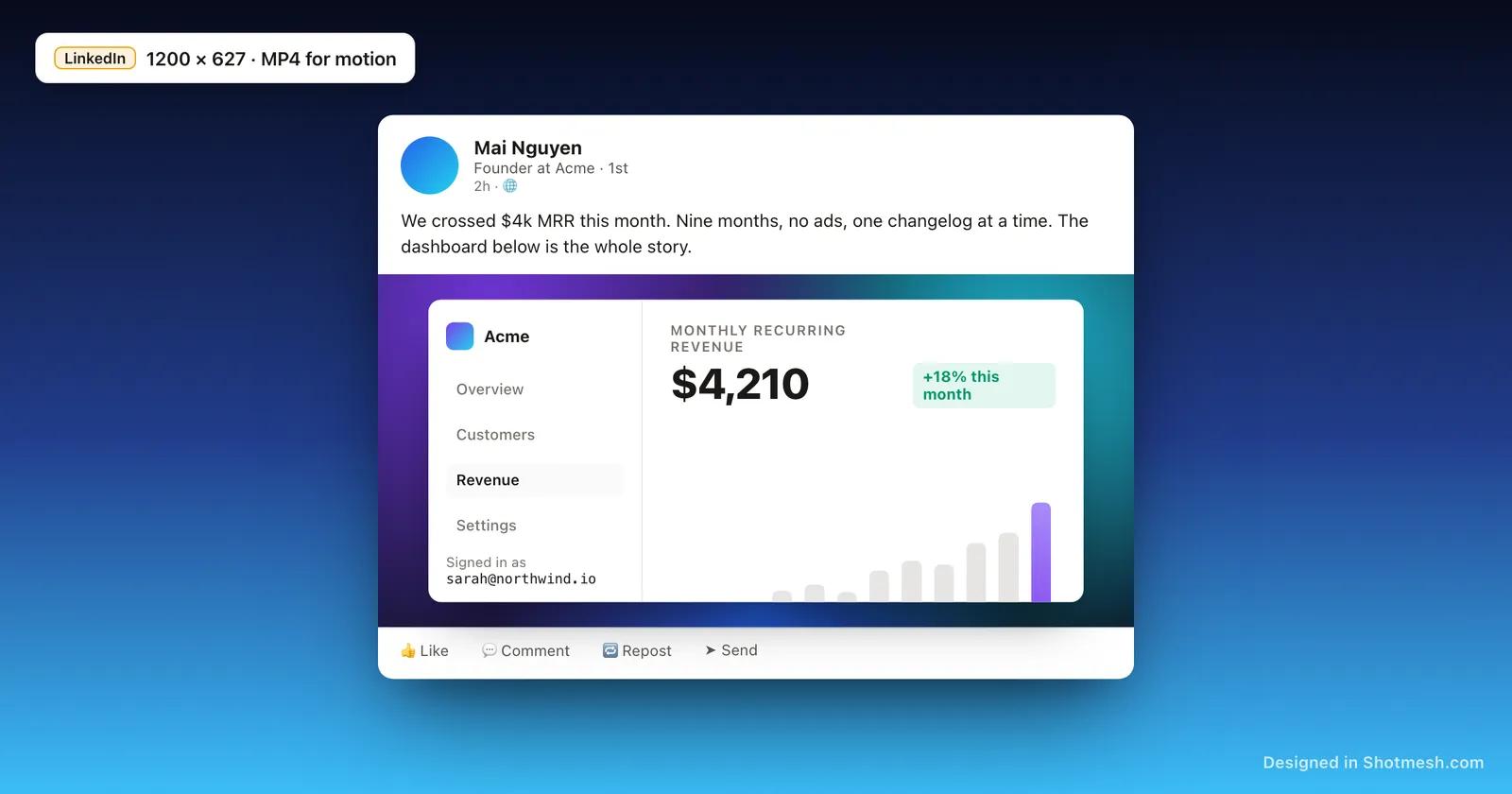
A raw browser screenshot posted straight to LinkedIn looks like what it is: a raw browser screenshot. Toolbar cropped weird on one side, a chat notification in the corner, no visual reason for anyone scrolling past on their phone to stop and read it.
LinkedIn also has a quirk that trips people up. Upload a GIF into a post and it plays as a plain static image, not a GIF, because LinkedIn does not autoplay GIFs in the feed. If a screenshot needs to show motion, a scroll, a hover state, a UI transition, that motion has to be an MP4, uploaded as video.
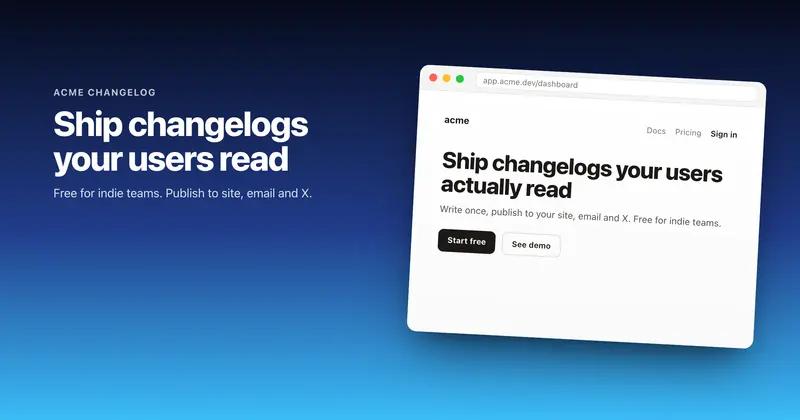
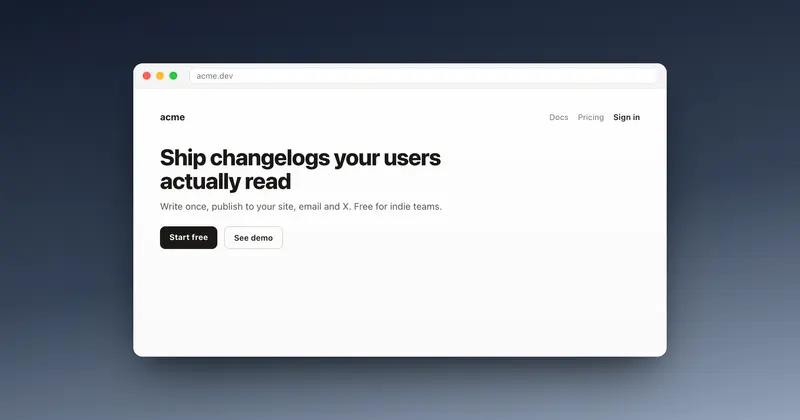
Shotmesh crops to the LinkedIn feed ratio, frames the shot in a browser or macOS window, and exports either a static PNG at 1200x627 or an MP4 for a moving demo. Most of the feed is scrolled on mobile, so the frame and any text inside the shot need to read at a small size, which is what the frame and annotation tools are built for.
How it works
How to make a screenshot look right on LinkedIn
- 01
Paste or drop your screenshot
Paste with Cmd+V or drag the image in. It opens in the editor and stays in your browser, nothing uploads.
- 02
Set the canvas to a LinkedIn size
Pick the 1200x627 preset for a feed image, or go square at 1080x1080. Both crop cleanly without cutting off the part of the UI you are showing.
- 03
Frame it and add a background
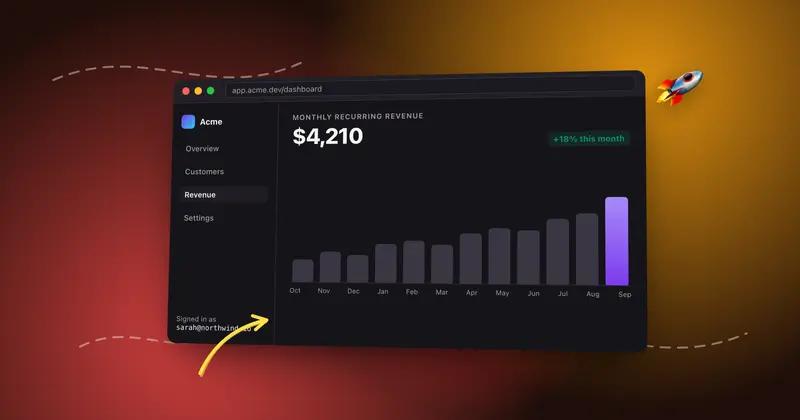
Wrap the shot in a browser or macOS frame, drop in a gradient behind it, and use an arrow or highlight to point at the one thing worth noticing.
- 04
Export PNG for a still shot, MP4 for motion
A single screenshot exports as PNG. If the shot needs to show a scroll or interaction, export MP4 and upload it as a native LinkedIn video, not a GIF.
Why Shotmesh
What you get that a plain crop does not
Sized for how LinkedIn actually crops
The 1200x627 and 1080x1080 presets match what the LinkedIn feed displays, so the image is not stretched, letterboxed or cropped again after upload.
MP4 gets you real motion, GIF does not
LinkedIn shows uploaded GIFs as a single static frame. Exporting MP4 instead and uploading it as video is the only way a scroll or interaction actually plays for people scrolling the feed.
Built for a screen held in one hand
Most of the LinkedIn feed is viewed on a phone. A frame, a bold highlight and a legible font size keep the point of the screenshot readable at that scale, not just on a desktop monitor.
FAQ
Questions people ask
What size should a screenshot be for a LinkedIn post?
Around 1200x627 (1.91:1) is what displays in the feed for a link-style image, and 1080x1080 square is also common for a standalone post. Shotmesh has both as canvas presets.
Why does my GIF play as a still image on LinkedIn?
LinkedIn does not autoplay uploaded GIFs as GIFs in the feed, it shows the first frame as a static image. To show motion, export MP4 and upload it as a native video instead.
Can I add an arrow or highlight pointing at part of the screenshot?
Yes, hand-drawn arrows, underlines and highlights are built into the editor, and they can animate in an MP4 export.
Do I need to sign up to export a PNG for LinkedIn?
No signup needed. Editing and PNG export are free, with a small watermark on the exported image.
Does the screenshot get uploaded to a server while I edit it?
No, the whole editor runs in your browser. The image is never uploaded, and export renders locally too.
Try it on a real screenshot
Paste from your clipboard and you are editing in under a second.